Plan a purchase and turn it into a goal
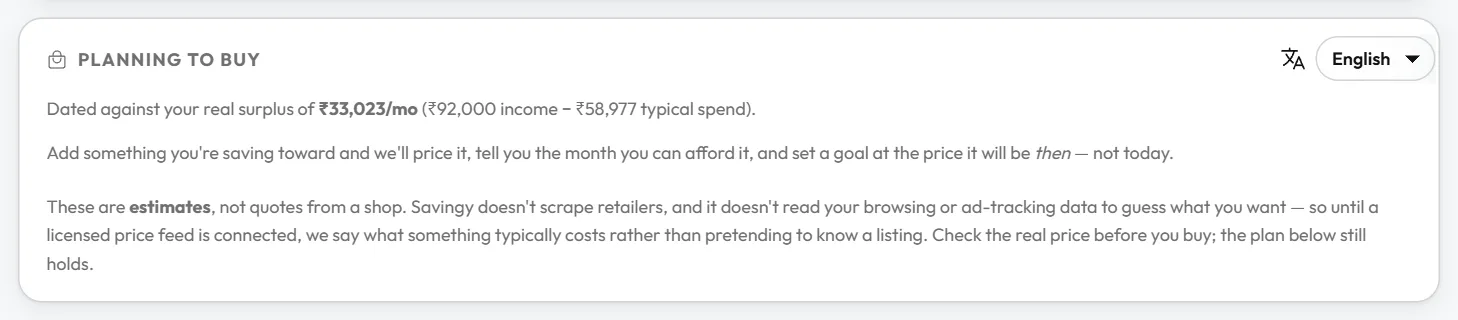
Planning to buy prices something you want, tells you the month your own surplus reaches it, and saves it as a goal at the price it will be then.
Why use it
Saving for the price a thing will cost when you buy it, not today's price, avoids coming up short.
Pro: Planning to buy is part of Pro. Without Pro it shows a locked preview with a way to get Pro. See what Pro includes.
Before you start
- Signed in
- Pro or an active trial
How to do it
Open "Ahead" and scroll to "Planning to buy".
Tap the add button ("Add something you want to buy").
Type what you want, at least three characters, or paste a product link. Savingy looks up a price as you type; when it has none on file it estimates one.
Tap "Plan this purchase" (or "Plan it anyway" when no price was found yet).
Read when you can afford it and what it should cost by then. Tap "Save as goal" to create a goal at that price.
Once it is a goal, tap "Fund it" to add money from Goals. Tap "View" to open the product listing.
What happens next: A message confirms "Goal created for ₹<amount> — the inflated price, so it still covers it."
How the date is worked out
The planner uses your real surplus: your income minus your typical spending, shown as "Dated against your real surplus of ₹<amount>/mo". It adds expected price inflation up to that month, so the goal covers the price then.
What it will not plan
Everyday items belong in your budget. Typing groceries and similar shows "Everyday items like groceries belong in your budget, not a purchase plan."
If something goes wrong
"Waiting on a price"
No price is on file yet. Wait for the estimate, or plan it anyway and come back later.
"Could not add that.", "Could not remove that." or "Could not create the goal."
Try again in a moment. If it keeps failing, reload the page.