Add money to a goal
Record money you have put aside for a goal with "+ Add funds", or move part of this month's free budget into it with "Fund from budget".
Why use it
Each amount you record moves the goal's progress, pace and finish date, so you can see whether you are on track.
Before you start
- At least one goal (see /help-center/create-a-goal).
- For "Fund from budget": a plan for this month with some money left unbudgeted.
How to do it
On Goals & bills, find the goal's card. To record money you have already set aside, select "+ Add funds".
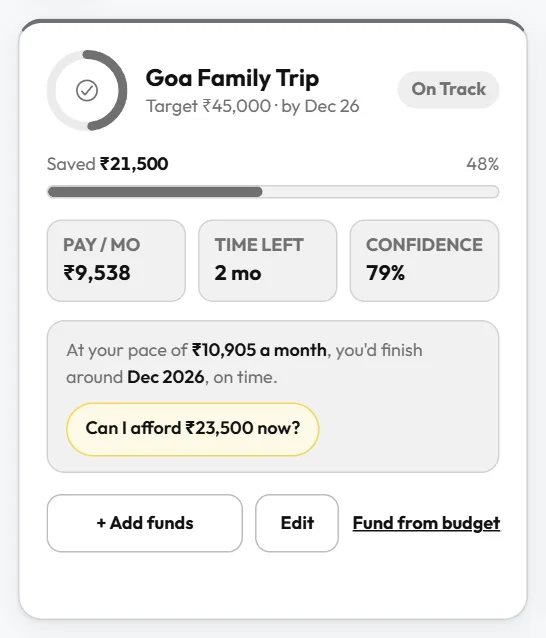
- 1+ Add funds
- 2Fund from budget
Type the amount and select "Save" (or press Enter). Select "✕" to cancel.
To fund it from this month's plan instead, select "Fund from budget". The Fund a Goal page opens with that goal selected.
Check "Available to allocate", type an "Allocation amount" or tap a quick amount ("On-track ₹…", "½ remaining", "Finish it" or "Max ₹…"), then select "Allocate ₹…".
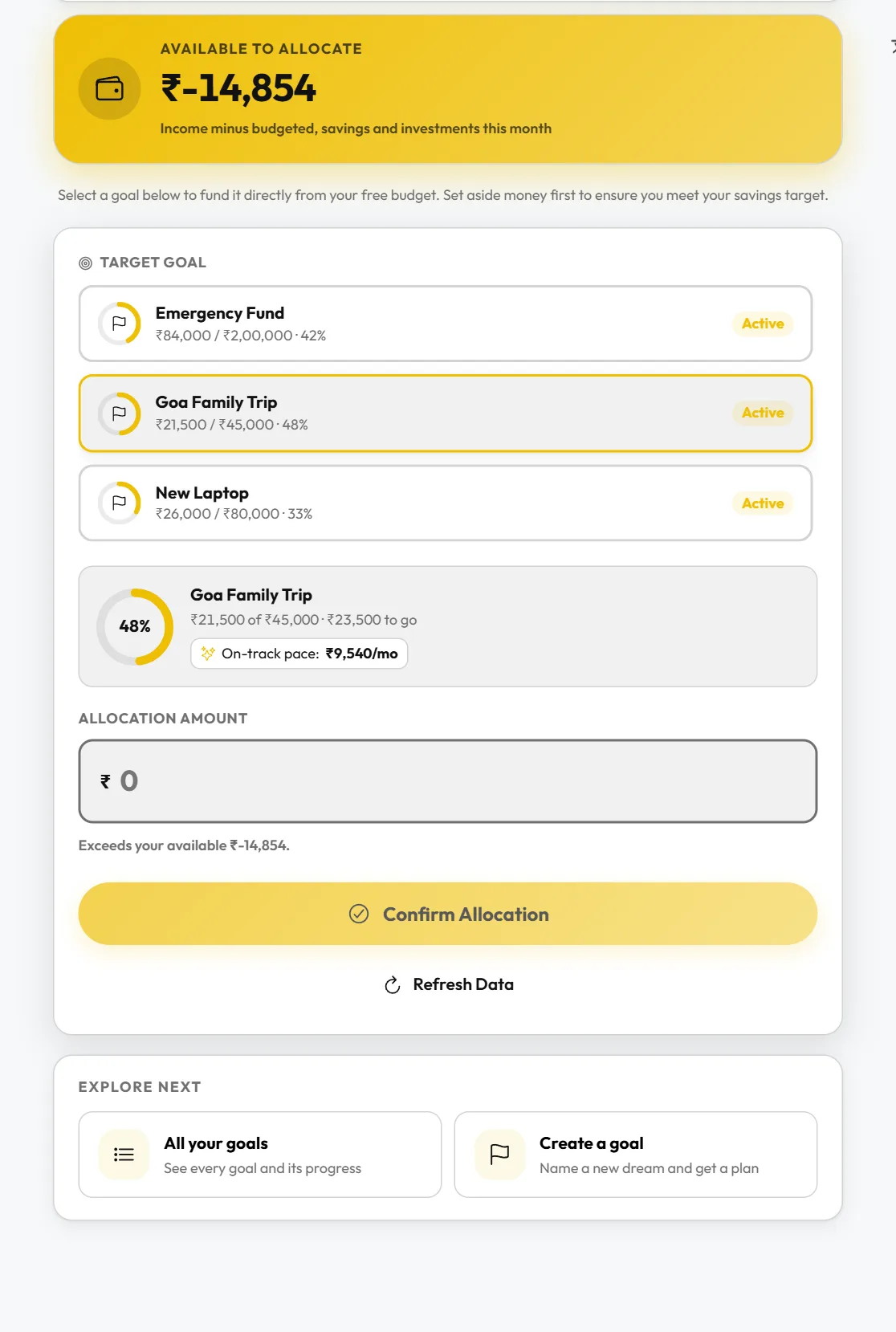
- 1Allocation amount
- 2Allocate
What happens next: You see "Added ₹… to <goal>" (from "+ Add funds") or "Allocated ₹… to <goal>" (from Fund a Goal), and the goal's progress updates.
What to fill in
| Field | What it needs |
|---|---|
| + Add funds amount | A number above zero, otherwise "Please enter a valid amount." |
| Allocation amount | Above zero and no more than "Available to allocate". A larger amount shows "Exceeds your available ₹…". |
The two buttons do different things
- "+ Add funds" only records the amount on the goal. Your plan and your account balances are not changed.
- "Fund from budget" records the amount on the goal and also lowers this month's planned income in your plan by the same amount, so that money no longer counts as free to spend in your plan.
- Neither moves money in a bank. Savingy never connects to your bank.
Limits
Savingy never records more than the goal still needs. If you enter more, only the remaining amount is added. When a goal reaches its target it is marked complete and leaves your Goals list.
From Ask
In Ask, type "put 5000 in Emergency Fund" (use your goal's name). You get a card to check, then hold "Hold to add to <goal>" to record it. This works like "+ Add funds": your plan is not changed.
Tips and examples
- The "Pay / mo" figure on each card is what you need each month from now to hit the deadline. The "On-track" chip on Fund a Goal uses the same figure.
If something goes wrong
"Please enter a valid amount."
Type a number above zero, without letters.
"Amount exceeds available budget of ₹…"
Lower the amount, or free up money in this month's plan first.
"Available to allocate" is ₹0 or negative.
Your plan budgets all of this month's income. Use "+ Add funds" instead, or adjust your plan. See /help-center/edit-your-budget.
"Goal already completed. No allocation needed."
The goal has reached its target. Create a new goal for what comes next.
"Could not load data. Please check your connection."
Select Retry. If it keeps happening, reload the page.