Set up your first monthly plan
Use the budget check-in to plan the month for one account: starting balance, salary, savings and investment targets, spending groups and the items inside them.
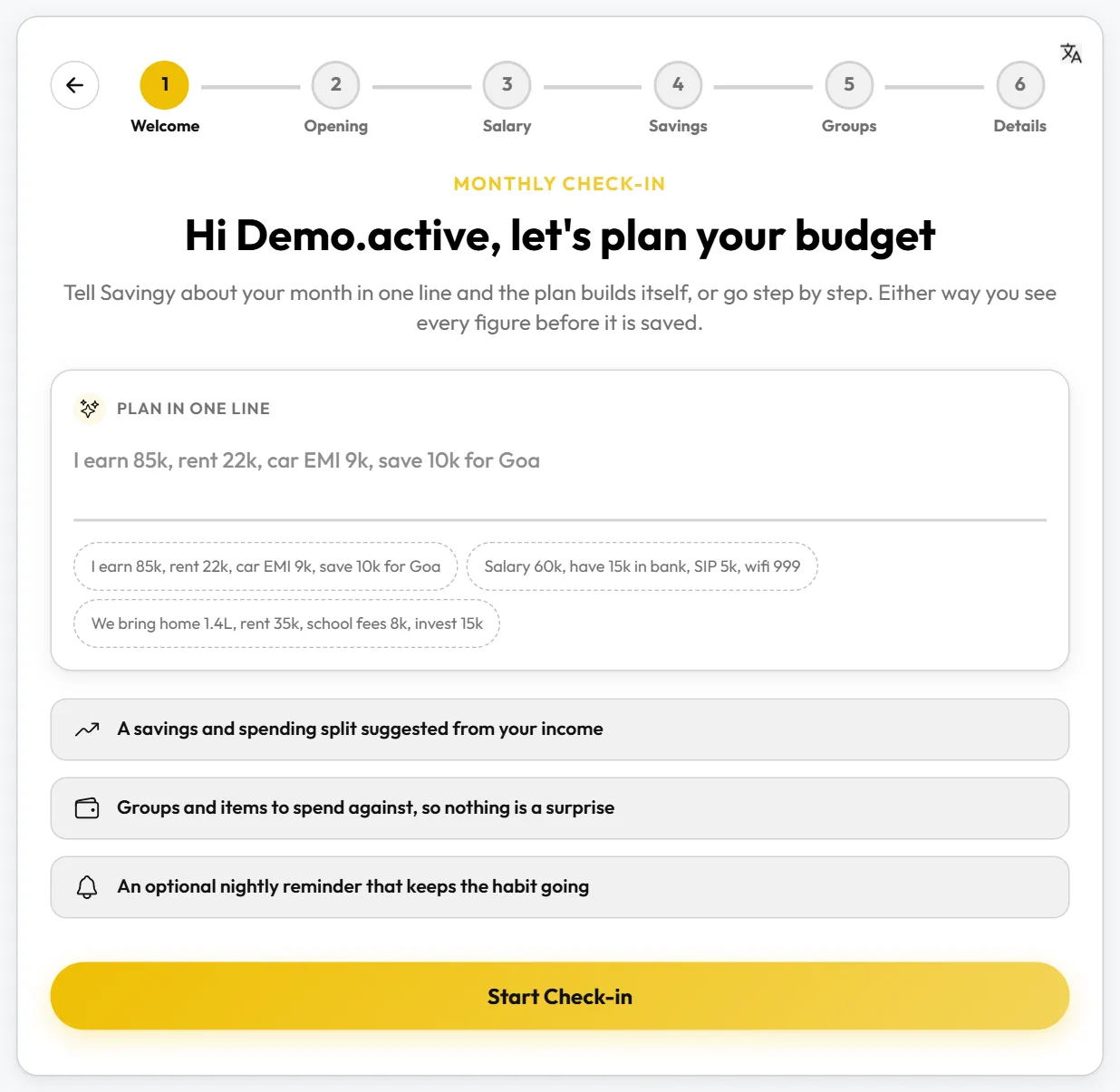
- 1Describe your month in one line, or go step by step
Why use it
A plan for the month is what turns your entries into a daily safe-to-spend figure and category limits.
How to do it
Open the menu, choose PLAN › Plan and select "Plan it in one line".
Check the "Budget for" chips at the top: the plan is saved to that account.
Describe your month in the "Plan in one line" box (see /help-center/plan-in-one-line), or select "Start Check-in" to go step by step. If you left a check-in half done, the button reads "Start from blank instead".
"How much is in this account right now?": enter the amount (0 is fine) and select "Next Step".
"Do you get a regular salary?": enter it and choose "Balanced Split" (50% Needs · 20% Savings & Invest · 30% Wants) or "Aggressive Saver" (40% Needs · 40% Savings & Invest · 20% Wants). No fixed salary? Select "Skip for now".
"Set your savings and investment targets": use the % chips or type exact amounts in "Savings Target" and "Investments Target". Select "Next Step".
"Define your spending groups": Recurring, Needs and Wants are filled in to start. Edit them or add your own with "Group Name", "Group Budget (₹)" and "Add Group".
"Add items to your groups": choose a group in "Choose Group", enter "Thing Name" and "Thing Budget (₹)" and select "Add Item". When every group has what it needs, select "Finish & Save".
On "Your budget is set", log one expense with the form, or select "Go to Dashboard" to finish.
What happens next: "Your budget is set" appears, your salary is recorded as income, and Today shows your Safe-to-Spend Today figure for that account.
What to fill in
| Field | What it needs |
|---|---|
| Opening balance | Required, 0 or more ("Enter what this account holds today. Enter 0 if it is empty."). |
| Salary | Optional; if entered, 0 or more ("Enter a valid amount, or skip this step."). |
| Savings Target and Investments Target | Together they cannot exceed your opening balance plus salary ("You can't save more than you have!"). |
| Group Budget (₹) | More than 0, and all groups plus savings must fit your money ("Oops! Not enough left. Remaining: ₹…"). |
| Thing Name and Thing Budget (₹) | Names must be unique; items must fit inside their group's budget ("Not enough in the group! Remaining: ₹…"). |
The running summary
From the second step, a strip shows "Income" (your opening balance plus salary), "Planned" and "Remaining", so you always see what is left to give a job.
Opening balance is not income
The opening balance is what the account holds today, normally last month's leftover. You can plan with it, but it is not counted as money you earned.
Finishing replaces this month's plan for that account
If the account already has a plan for this month, "Finish & Save" replaces it. To change a few numbers instead, use the Budget Planner (see /help-center/edit-your-budget).
During the guided setup
If you have not finished the guided setup yet, the plan is saved as practice and you return to the setup when you finish.
If something goes wrong
"Add at least one group with some money to go next!"
Give at least one spending group a budget above 0 before selecting "Next Step".
"Add at least one thing to a group to finish!"
Add at least one item, such as Groceries under Needs, before "Finish & Save".
"This group has items inside. Remove them first!"
Delete the items in that group on the next step, then delete the group.
"Your budget was saved, but the salary entry did not go through. Add it from Add Record."
Your plan is safe. Add the salary as an income entry from Add Record or Money.
"Error: Something went wrong while saving onboarding data."
Check your connection and select "Finish & Save" again.