Create your free Savingy account
Sign up with an email address and a password. No card is needed, and you can start your guided setup straight away.
Why use it
An account keeps your records, plan and goals safe and lets you use them on the website and the Android app.
How to do it
Open Savingy and select "Create free account" in the header. On a phone, open the ⋮ menu at the top right, choose "Sign In / Join" and then the "Sign Up" tab. After you scroll a page on a phone, a bar at the bottom also offers "Create free account".
Type your email in "Email Address" and choose a password of at least 6 characters in "Password". Use the eye icon to check what you typed.
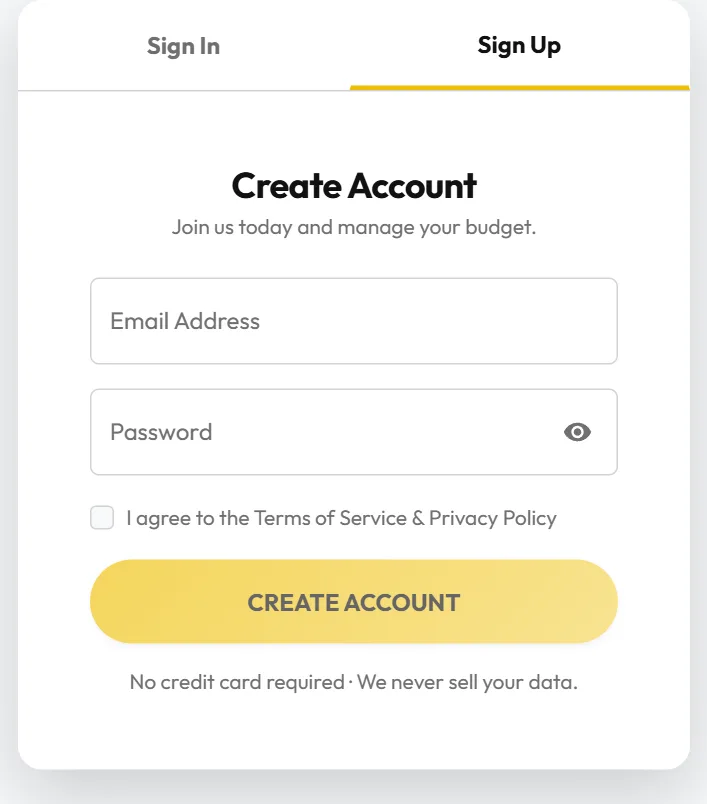
- 1Email Address
- 2Password (at least 6 characters)
- 3Tick the agreement to enable the button
The Sign Up tab on the account page. Tick "I agree to the Terms of Service & Privacy Policy". The button stays greyed out until you do.
Complete the "I'm not a robot" check.
Select "CREATE ACCOUNT".
On the "Check your inbox" panel, select "Start my setup" to begin your guided setup.
What happens next: You see "Account created · Check your inbox" with the address we sent a confirmation link to. You are already signed in and can start setup immediately.
What to fill in
| Field | What it needs |
|---|---|
| Email Address | Must be a valid email address that is not already registered. If it is, you see "Account Exists" with "User already exists." |
| Password | At least 6 characters ("Password must be at least 6 characters."). |
| I agree to the Terms of Service & Privacy Policy | Must be ticked before "CREATE ACCOUNT" can be selected. |
| I'm not a robot | Required. If it is missing you see "Security Check" with "Please verify you are not a robot." |
Confirming your email
Confirming is not required to use Savingy, but it protects password recovery. Open the link in the email within 24 hours.
If the email has not arrived, select "Resend confirmation email" on the same panel. A fresh link replaces the previous one.
- Typed the wrong address? Select "Wrong email address? Correct it in Profile", change it and save. A new link goes to the new address.
What happens next
"Start my setup" opens the guided setup: pick a goal, enter your income, build a practice plan and log a first expense. The full app unlocks when you finish it. See /help-center/level-0-guided-start.
Tips and examples
- Use an email address you check. Password reset links are sent there.
- To read the Terms and the Privacy Policy before you agree, open "Terms" and "Privacy" from the ⋮ menu.
If something goes wrong
"Account Exists" with "User already exists."
That email already has a Savingy account. Use the "Sign In" tab, or select "Forgot password?" there to set a new password.
"Security Check" with "Please verify you are not a robot."
Tick the "I'm not a robot" box again. It expires after a short while, so tick it just before you select "CREATE ACCOUNT".
"Missing Info" with "Please fill in all fields."
Enter both an email address and a password.
"Too many attempts. Try again in 15 minutes."
Too many failed attempts came from your connection. Wait 15 minutes and try again.
"We could not send another link yet. You can continue setup and retry from Profile."
Carry on with "Start my setup". Later, open Profile and select "Resend verification email". You can request up to 3 links an hour.