Read and change your monthly plan
Plan shows the month on one screen: what you have to plan with, how it's split across groups, saving and investing, and each group and item's spending against its plan, with the ones that need attention first. Tap any line to change it.
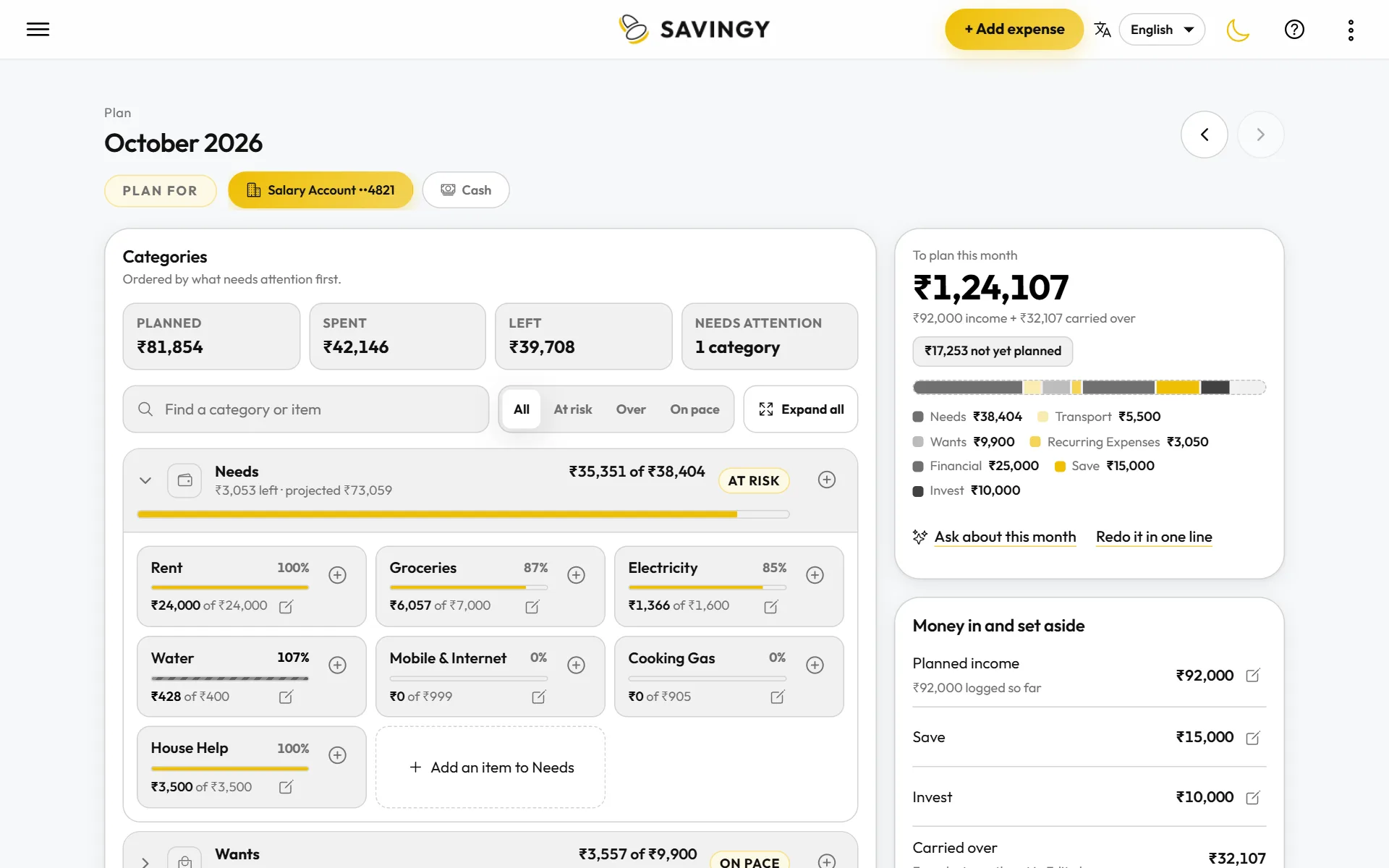
- 1What you have to plan with, and how it is split
- 2Planned income, Save and Invest
- 3Step to earlier months
Why use it
A plan turns your income into limits you can see, so every entry tells you how much is left.
Before you start
- You are signed in and have finished the guided start (Level 0).
How to do it
Open Plan. It shows the current month for one account. Change the account with "Plan for".
Read the top card: "To plan this month" is your income plus anything carried over. The chip shows how much is "not yet planned", or how much you are over.
Under "Money in and set aside", tap "Planned income", "Save" or "Invest" to change it. Type the "Amount for the month" and press "Save".
Under "Categories", read the strip at the top (Planned to spend, Spent, Left, Needs attention). "Planned to spend" is your categories added together; the line under the strip adds what you save and invest, and compares the total with what you have to plan. Find a group or item with "Find a category or item", or show only "At risk", "Over" or "On pace" groups.
Tap a group to open or close it ("Expand all" opens every group). Groups that need attention come first.
In an open group, tap an item to change its "Name" or "Amount for the month", or press "Remove". Press "Add an item to …" to add one. The + button next to a group or item ("Log spend in …") opens Add Record with that category chosen.
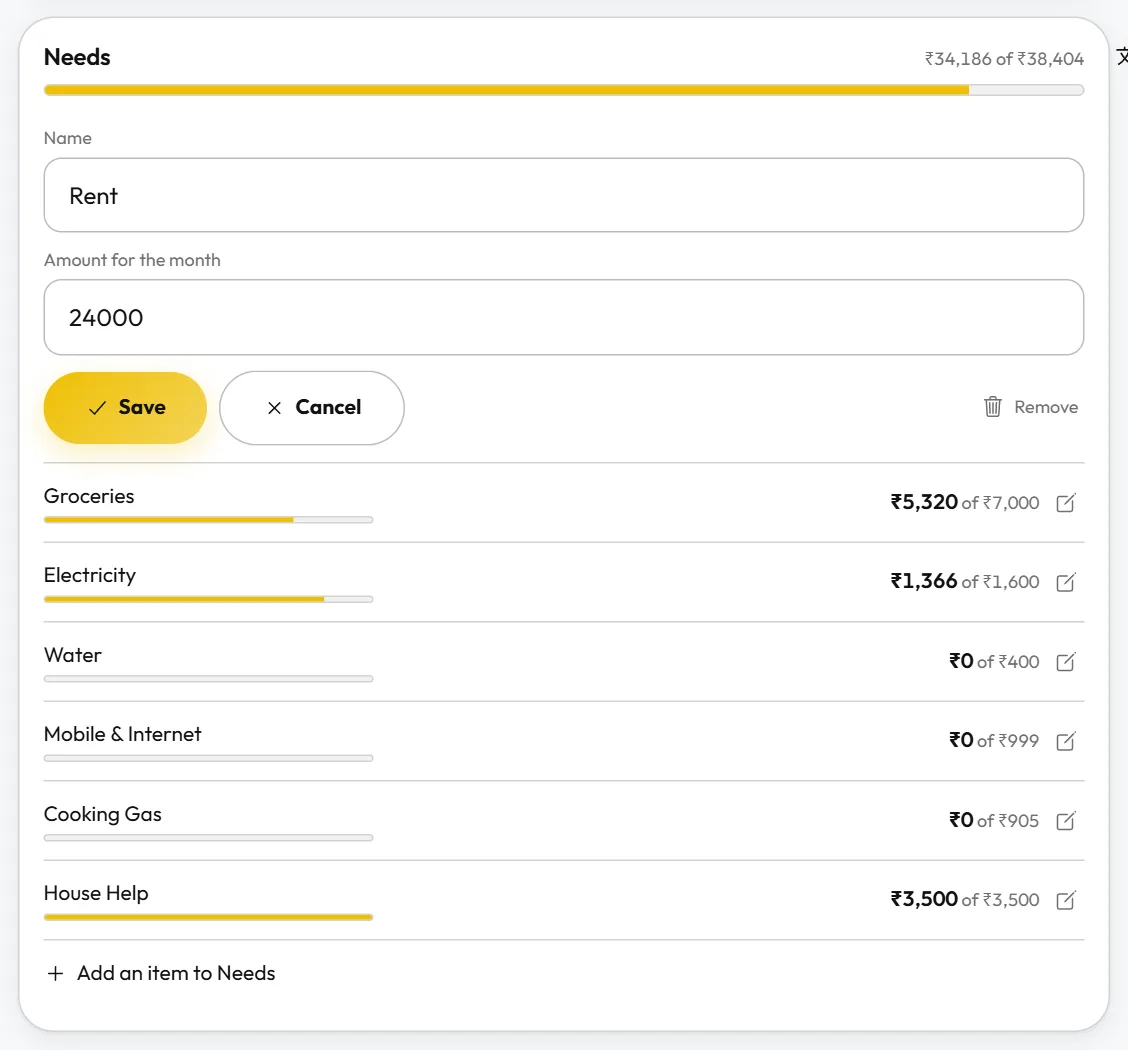
- 1Change the name or amount, then Save
Use "Previous month" and "Next month" to look back. You can go back up to 12 months.
What happens next: A message such as "Groceries updated." confirms the change, and the bars update straight away.
What to fill in
| Field | What it needs |
|---|---|
| Name | Required, up to 40 characters. A new item needs a name: Give the item a name. |
| Amount for the month | Whole rupees. Leaving it empty means ₹0. |
What the screen shows
- The split bar: each group, Save and Invest as a share of what you have.
- Each group: spent of planned, what is left (or how much over), where spending is heading by the month end ("projected"), a progress bar and a status: "Over" (already spent more than planned), "At risk" (on course to go over at this month's pace) or "On pace".
- Each item: spent of planned, with a small bar, marked when it is over.
- On a computer, the month's money (To plan this month, Money in and set aside) sits beside the categories; on a phone it comes first.
- "… is not given to an item": part of a group's limit that no item uses yet.
- "Carried over": money left from last month. It is set in Edit plan (Budget Planner, Income step, Opening Balance).
No plan yet
You see "No plan for … yet" with "Plan it in one line" and "Step by step". "Plan it in one line" builds the current month from a sentence. For an earlier month, use "Step by step" and choose the month at the top of the Budget Planner.
More tools on this screen
- "Ask about this month" opens Ask with the question filled in.
- "Redo it in one line" rebuilds this month's plan from a sentence.
- "What if one category ran lighter?" (current month only). See /help-center/what-if-trim.
- New groups, icons and the opening balance are in "Edit plan" (also in the menu under TRACK). Goals and bills are on Goals & bills.
If something goes wrong
That plans ₹… more than you have this month. Lower something else first.
Your groups, Save and Invest add up to more than your income plus carry-over. Lower another line, or raise Planned income if you really earn more.
Add an income figure, or an opening balance, first.
Set Planned income, or an Opening Balance in the Budget Planner, before changing the rest.
All fields are required.
Savingy can't save a month whose Save, Invest or Planned income is ₹0 right now. See /help-center/cant-save-budget for what to do.
Your plan could not be loaded.
Press "Retry". If you see "Sign in again to see your plan.", sign out and sign in again.