Find your way around Savingy
Where everything lives: the header, the menu, the bottom bar on phones and the Today, Ask and Money switch.
Why use it
Knowing the three ways around Savingy means every screen is one or two taps away.
Before you start
- Finished the guided setup (during setup the menu is hidden)
The header
- ☰ ("Toggle Navigation Sidebar") opens the menu.
- The Savingy logo takes you home. Hover over it (or move to it with the keyboard) to see shortcuts to your recent and most-used screens.
- Quick actions opens shortcuts to log an expense, check a purchase, review your plan or set a goal.
- Open Profile to change dark mode or language. Savingy Intelligence opens from the sparkle when available.
- The ? icon opens this Help Center.
- ⋮ ("Open More Actions Menu") has Home, Profile, Wallet, Refer & Earn, Telegram bot, Research, Analysis, Help Center and Sign Out.
The menu
Your name and photo at the top open Profile. Below them, screens are grouped. Close the menu by selecting a screen, clicking outside it or pressing Escape.
- HOME: Today, Ask, Money
- TRACK: Tracker, Edit plan, Add Record
- PLAN: Plan, Goals & bills, Weekly Reset
- GROW: Moves, Ahead, Statement (Pro tools)
- UTILITIES: Data Management
- ACCOUNT: Profile / More, Accounts
- Sign Out at the bottom
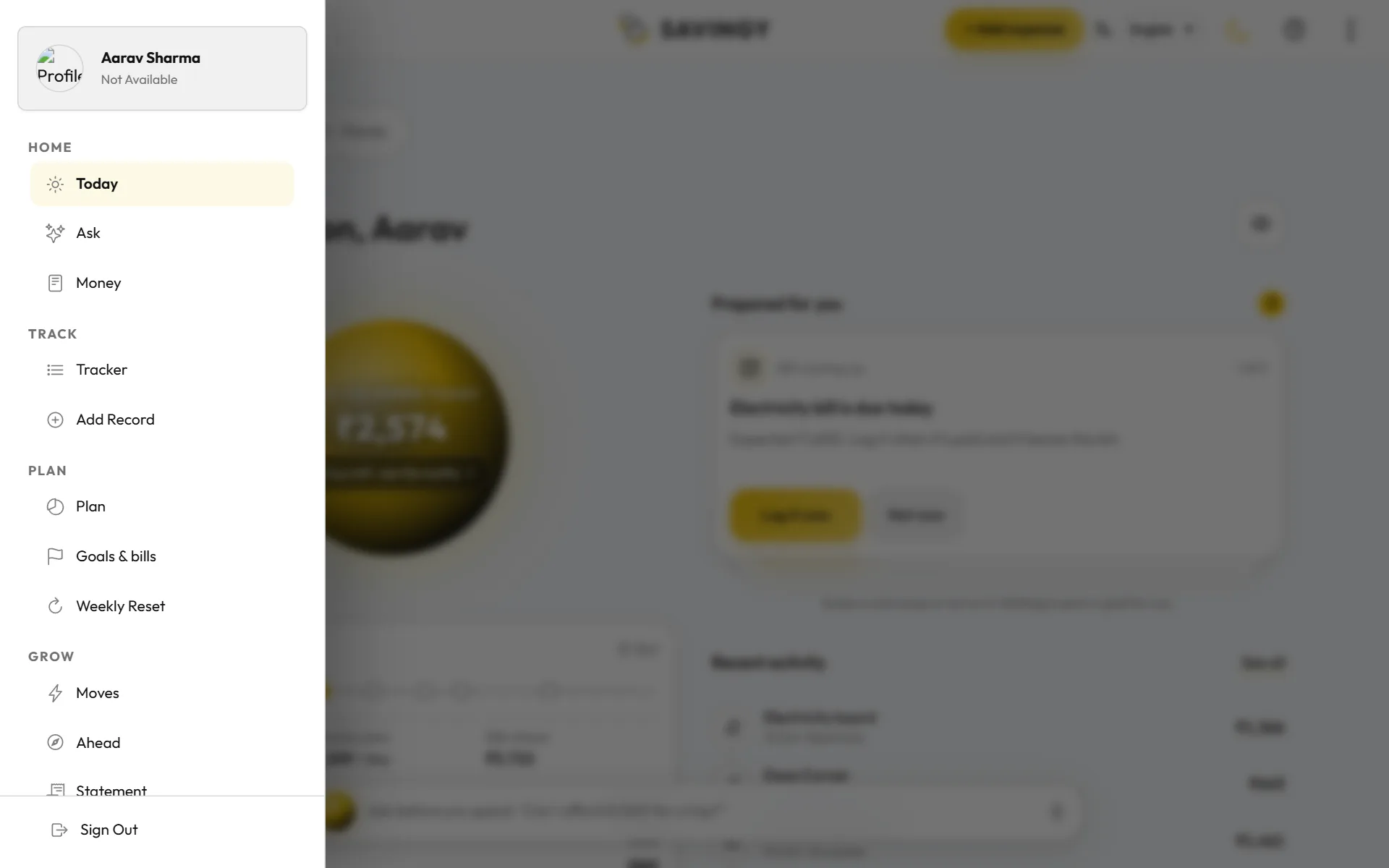
- 1The menu, grouped by HOME, TRACK, PLAN and more
- 2⋮ More actions
- 3Help Center
On a phone
A bar at the bottom holds Today, Money, Ask (the gold button in the middle), Add and More. More opens the same menu. The plus button in the header opens Quick actions. Add in the bottom bar still opens expense entry.
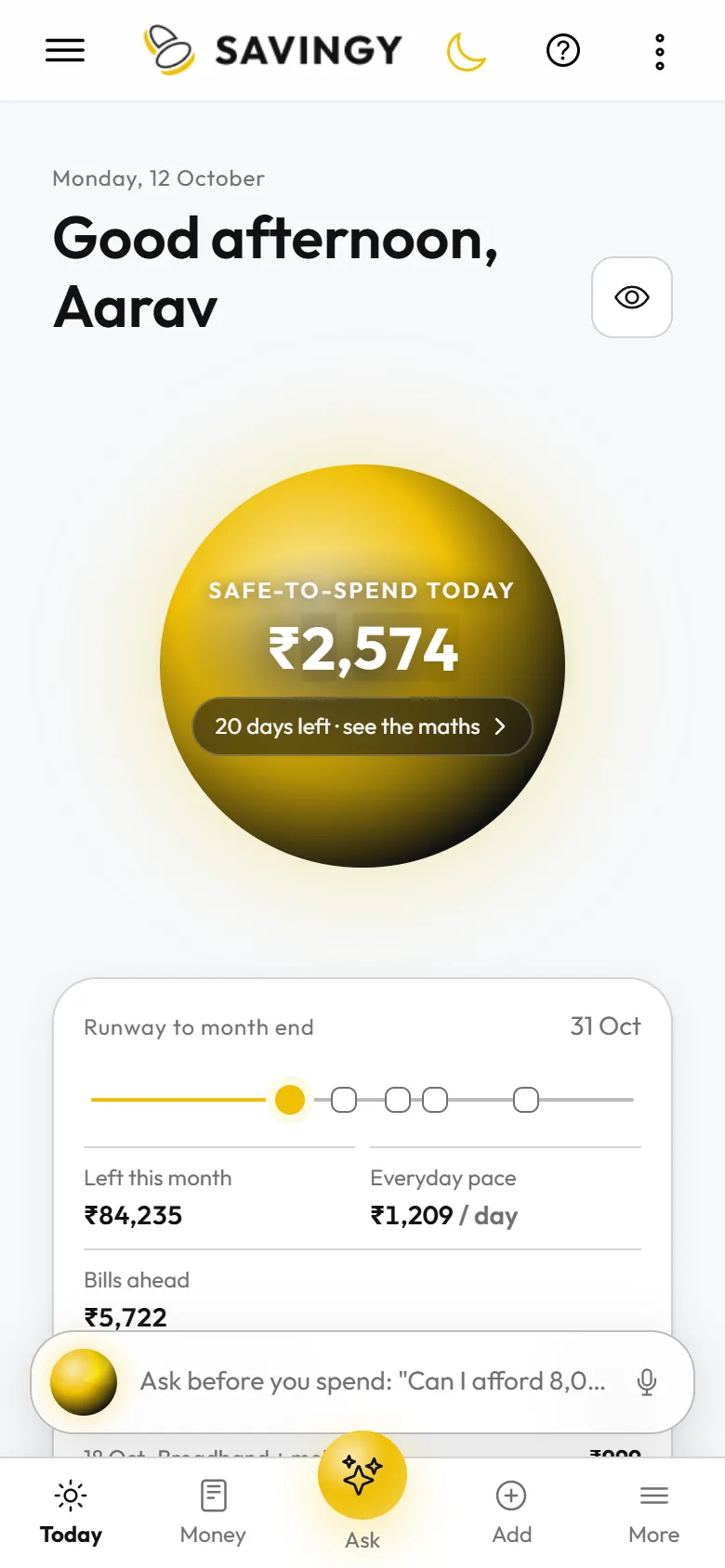
- 1Ask, in the middle
- 2More opens the full menu
Today, Ask and Money
These three screens are the everyday front door. On a computer, a switch at the top of each lets you jump between them. "Home" (from the logo or the ⋮ menu) opens Ask once you have finished setup.
More handy shortcuts
- The round shopping-bag button ("Toggle Purchase Planner") opens the Purchase Planner. See /help-center/purchase-planner.
- Menu items are real links: right-click or Ctrl-click to open a screen in a new tab.