Log an expense or income in one line
Type a spend the way you'd say it, like "chai 40 upi" or "kal petrol 500". Savingy reads the amount, category, day and payment method, and you save it with one tap.

- 1Type the entry in your own words
- 2The amount Savingy read
- 3Save with the arrow, or press Enter
Why use it
It is the quickest way to keep your records up to date. Most entries take a few seconds and never need the full form.
Before you start
- You are signed in and have finished the guided start (Level 0).
- This month has a plan with categories. An expense is always filed under one of your own plan's items.
How to do it
Open Money. The line at the top says Try "chai 40 upi" or "kal petrol 500".
Type what you spent, for example "chai 40 upi". Add a payment word (upi, card, cash) or "kal" / "yesterday" if it helps.
Check the chips under the line: the amount, the category, the payment method, the day and the name.
If the category chip says "Choose category", open it and pick the right item from your plan.
Press Enter or the arrow button ("Save entry"). A message such as "Saved Chai · ₹40." confirms it. Tap "Undo" in that message if you saved something by mistake.
What happens next: The entry appears at the top of the Ledger on Money, and Available, Spent, Left and Entries update straight away.
What to fill in
| Field | What it needs |
|---|---|
| Add an entry in plain words | Needs an amount above zero. Without one you see: Add an amount, like "chai 40" or "petrol 1.2k". |
| Category | Expenses need a category from this month's plan. If none is picked you see: Pick a category for this one. |
What Savingy understands
- Amounts like 40, 1,250, 1.2k, 2 thousand, 2 hazaar, 1.5 lakh or 1L.
- "kal" or "yesterday" files the entry under yesterday. Everything else is today unless Savingy AI reads another day (see below).
- upi, gpay, phonepe, paytm or bhim show as UPI; card, credit or debit show as Card; cash shows as Cash.
- Words that match one of your plan's items pick that item, for example "chai" picks "Chai & Snacks" if your plan has it. Common words like petrol, uber, swiggy, milk or rent point to a matching item in your plan.
- Lines with salary, refund, cashback, received, got paid, income, bonus or credited are saved as income.
When Savingy AI helps
Most lines are read on your device, and nothing is sent anywhere. When a line has an amount but something is missing, such as an unknown shop name, several prices on one line or a day like "last friday", Savingy AI reads it. The chips then say "Reading with Savingy AI…" and then "Read by Savingy AI". It only uses an amount written in your line and a category from your own plan.
If Savingy AI is busy or unavailable, the device reading stays and you can pick the category yourself.
Income from the Money line
Income typed on Money is saved as Salary, or as Refund or Cashback when you use those words. To choose another source, such as Freelance or Rental, use the full form on Add Record. Income doesn't show in the Money Ledger, which lists expenses; you find it in Tracker under "Income".
Say it in one line on Add Record
Add Record has the same idea at the top of the form. It also shows how the entry changes your "Safe-to-Spend Today" figure before you save, and, above it, "Tap to log" holds your usual entries: one tap saves one (see /help-center/add-a-record-in-full).
- "Save ₹…" saves the entry when amount and category are both read.
- "Review in the form", "Finish in the form" or "Choose a category" copies what was read into the form below so you can complete it.
- The line takes up to 200 characters. If it can't be read you see: That did not read as an entry. Use the form below.
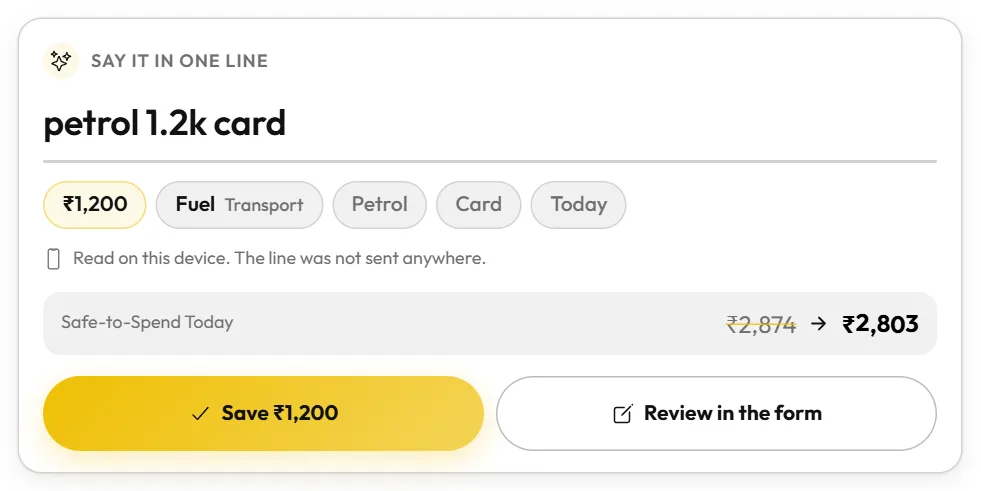
- 1What Savingy read
- 2Save in one tap
Tips and examples
- Name the shop or item first and the amount next: "dmart 1450 card" reads better than a number alone.
- Every real entry counts toward the 30 entries before your free trial can open. Practice entries from the guided start don't.
- For a date further back than yesterday, a receipt or an itemised bill, use the full form. See /help-center/add-a-record-in-full.
- chai 40 upi
- kal petrol 500
- milk 60 bread 45 blinkit
- uber 230 yesterday
- salary 85k
- refund 499
If something goes wrong
Add an amount, like "chai 40" or "petrol 1.2k".
The line has no number Savingy can use. Add the amount, for example "auto 120".
Pick a category for this one.
Savingy couldn't match a plan item. Open the category chip and choose one. If the right item doesn't exist, add it to your plan first (Menu › Plan › Add an item to a group).
The category list is empty.
This month has no plan yet. Set one up from Money › Plan › "Set one up", or see /help-center/set-up-your-first-plan.
That entry did not save. Please try again.
Check your connection and press Enter again. If you see the message more than once, open Tracker to check whether the entry was saved before you try again.