Import a bank or card statement
Upload up to 3 months of a bank or card statement as PDF, CSV or Excel. Savingy categorises the rows, catches entries you already have, asks only about unclear rows and saves nothing until you press Import.
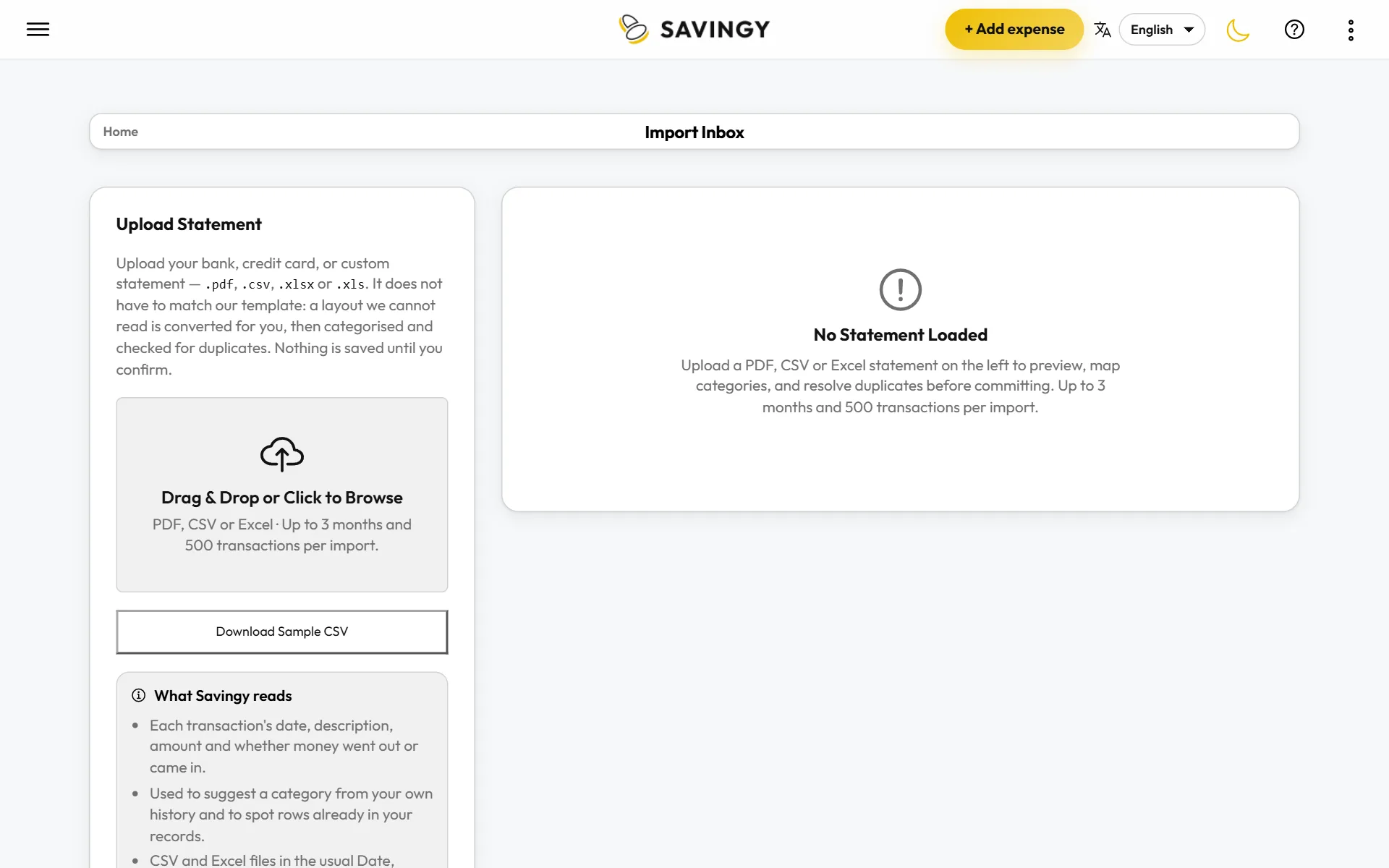
- 1Drop or choose your statement
Why use it
It's the fastest way to catch up on weeks of spending without typing, and without linking your bank. Logging as you go then helps you notice spending as it happens.
Before you start
- You are signed in and have finished the guided start (Level 0).
- Every month in the statement has a plan.
How to do it
Download the statement from your bank or card app as PDF, CSV or Excel, covering up to 3 months.
Open Import Inbox and drag the file onto "Drag & Drop or Click to Browse", or click it to choose the file.
Wait for the "Statement Preview". A line above the tabs says how many rows are ready to import, how many need you and how many are already in your records. The tabs show "New", "Needs Review" and "Duplicates".
Open "Needs Review". For each unclear line, press "Yes, …" to accept the suggestion, pick another category, or press "Leave it out of this import". You can also swipe right to accept or left to leave out.
Check the "New" tab. Change a row's category, or delete a row you don't want.
Press "Import … Transactions".
Read the summary (for example "12 transactions imported", or "Nothing new was added"), then press "Go to Transaction Tracker" to see the entries.
What happens next: Savingy says how many transactions were imported, how many were already in your records and skipped, how many you left out, and how many lines could not be read. It never counts a row as imported unless the server saved it.
What to fill in
| Field | What it needs |
|---|---|
| Statement file | PDF, CSV, XLSX or XLS. Up to 3 months (92 days from the first to the last transaction) and 500 transactions per import. PDFs up to 8 MB. |
Duplicates
Rows that are already in your records are listed under "Duplicates" as "Already Saved" and are skipped. If you upload the same statement again you see "This statement is already imported".
Statements in an unusual layout
A file that doesn't match the usual Date, Description, Amount layout, or a PDF, is converted for you first. This can take a moment. "Download Sample CSV" shows the simple layout if you prefer to prepare the file yourself.
Categories in Import Inbox
The category list in Import Inbox shows your plan's own items for this month. If this month has no plan yet it offers standard names instead. After importing, you can move rows from this month to other items on Money, or fix older rows with the edit button in Tracker.
What Savingy reads
Savingy reads each transaction's date, description, amount and whether money went out or came in. It uses them to suggest a category from your own history and to spot rows already in your records.
CSV and Excel files in the usual Date, Description, Amount layout are read in your browser; only the rows are sent to Savingy. PDF statements, and spreadsheets in a layout Savingy can't read directly, are read by Savingy's AI service hosted on Microsoft Azure to turn them into rows. Savingy doesn't store the file itself.
Bulk upload on Add Record
Add Record › "Bulk upload / entry" has two more ways in. On "Excel Upload", "Import bank statement" converts a statement and adds its expenses when you press "Upload": rows already in your records are skipped, the same 3-month limit applies, and money-in rows are left out (use Import Inbox to bring in income). You can also press "Download Template", fill it in and upload it; a filled-in template follows the same rules (duplicates skipped, up to 3 months). "Manual Grid" lets you type several expenses as rows and press "Save All"; the grid skips the duplicate check. Rows that didn't match one of your categories import as uncategorised so you can file them later.
If something goes wrong
One month in this file has no budget yet
Press "Set those budgets". Create a plan for each named month (Plan › step back to the month › Step by step), then upload the file again.
Set a budget for every month in this file first.
Same as above: each month in the file needs a plan before you can import.
Review or exclude every low-confidence row before importing.
Go through the "Needs Review" tab and accept or leave out each line.
No transactions were found in that statement.
Check that the file has transaction rows, not just a summary page. Try exporting it as CSV.
Could not read that statement. Try exporting it as CSV.
Download the statement again from your bank as CSV or Excel and upload that.
That PDF has no readable text — it is likely a scan…
Scanned PDFs can't be read. Download a CSV or Excel statement instead.
This statement is already imported — nothing left to add.
Everything in it is already in your records. Upload a statement for a different period.
This statement is too long for one import
Download the statement again for a shorter period, up to 3 months and 500 transactions, and import each period separately. Most banks let you choose the dates.
The import stopped before it finished.
Check your connection and import the same statement again. Rows that already saved are recognised and skipped.