Search and review entries in Tracker
Tracker shows every expense and income month by month: a calendar with each day's total, a one-line quick add, search in plain words, filters and the month's totals.
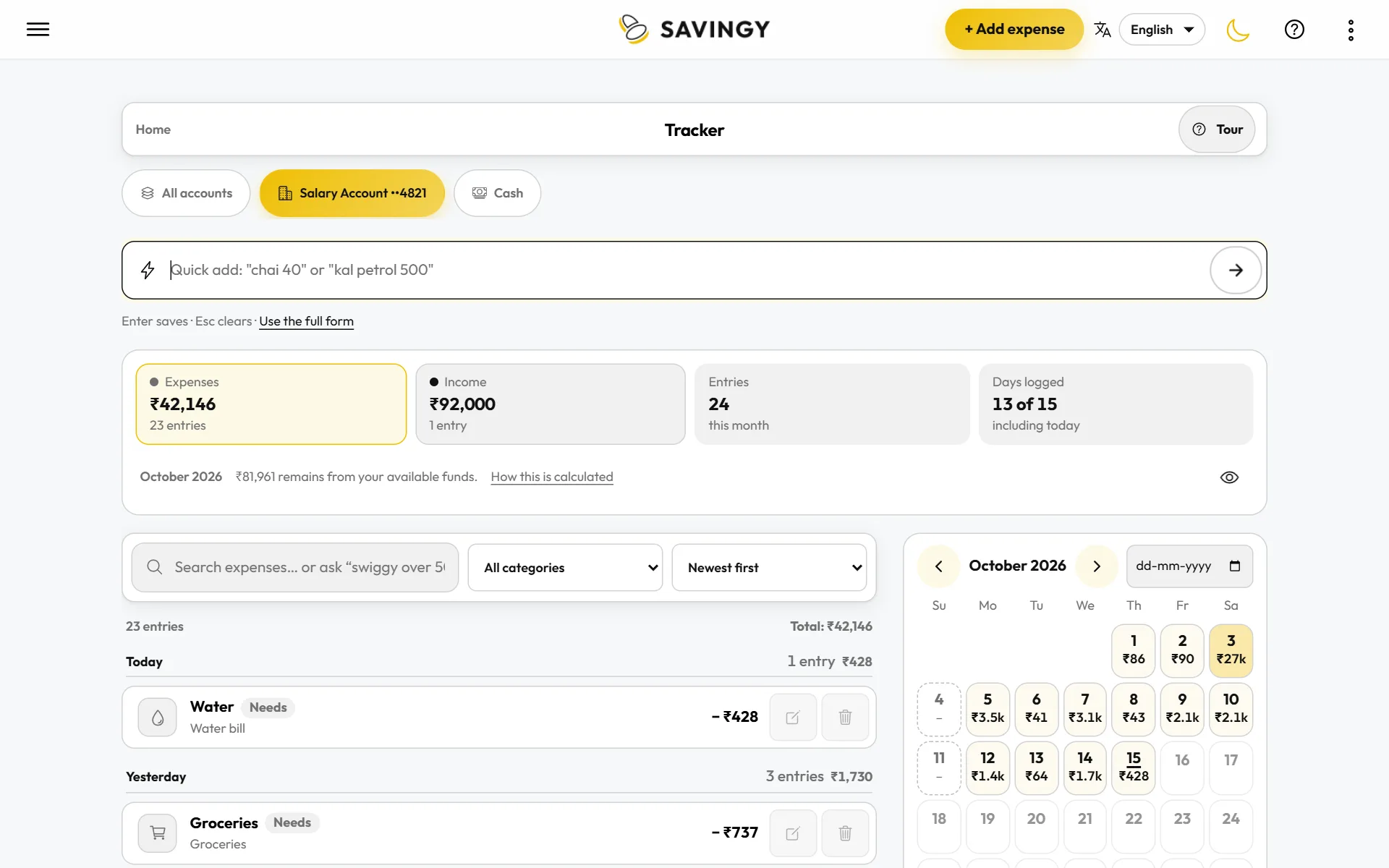
- 1Change month or pick a day
- 2Expenses or Income
- 3Search in plain words
Why use it
Use it to find a payment, check a month, catch up on days you missed, or see where most of the money went.
Before you start
- You are signed in.
How to do it
Open Tracker. It shows the current month.
Use "Previous month" and "Next month" (the arrows on the calendar) to change month, or pick any date with the date field next to them. A date in another month opens that month.
Press "Expenses" or "Income" in the month totals to choose which list you see.
Press a day on the calendar to see only that day. Press it again, or "Clear day", to see the whole month.
Search by item, note or group, or ask a question like "swiggy over 500 in september". Savingy shows how it read it under "Reading your search as".
Narrow the list with "All categories" and sort it with "Newest first", "Oldest first", "Highest amount" or "Lowest amount". On a phone, press the filter button next to the search box.
What happens next: The list shows only the matching entries, grouped by day with a total for each day, and a running total at the top.
The month totals
- Expenses and Income: what you recorded this month, with the number of entries.
- Entries: how many expenses and incomes you recorded this month.
- Days logged: how many days of the month so far have at least one entry.
- How much remains from your available funds (your income plan or recorded income, plus carry-over).
- "Month context" (beside the list on a computer, below it on a phone): Income pool, Expenses, Planned savings, Planned investments, "Available funds used", Top spending and "Month vs Last Month".
The calendar
- Each day shows its total for the list you are viewing. Bigger days are shaded darker.
- A day with nothing logged has a dashed outline and a dash. Nothing more: no warnings and no streaks.
- Days after today are faded.
- On a phone the calendar is a strip you can swipe; it opens on today.
Catching up on a missed day
- Press the day on the calendar. Savingy says "nothing logged" and shows "Add for" that day, which opens Add Record with the date already set.
- Or, with the day picked, type the entry in Quick add at the top, such as "chai 40", and press Enter. It is saved to the picked day. If the line names its own day, such as "kal petrol 500", that day is used instead.
Quick add
- Type an entry the way you would say it and press Enter (or the Save button). Only the amount is needed.
- The category is the one Savingy recognises in your words, otherwise the one you last used for the same words, otherwise your most recent category. It is shown before you save and you can change it.
- After saving, a message shows the amount, category and day, and how much is left in that category when your plan has a figure for it. Press "Undo" in the message to remove the entry.
- Press Esc to clear the line. "Use the full form" opens Add Record.
Hiding amounts
Press the eye button in the month totals to hide amounts on screen, for example in public. Press it again to show them. Savingy remembers your choice on this browser.
Receipts
Rows with a receipt show a receipt button. Press it to view the receipt full screen, and close it with the X or Escape.
Tips and examples
- The search and filter line stays at the top of the screen while you scroll the list.
- To change or delete an entry, press it in the list. See /help-center/edit-or-delete-an-entry.
If something goes wrong
No expenses found. Try adjusting your filters or date range.
Press "Reset filters" to clear the search, category and day.
Failed to load current month data.
Press "Retry". If it keeps failing, check your connection.
Quick add says "Pick a category for this one."
Choose the category in the list under the line, then press Enter. Categories come from your plan for the month.