Read your Today screen
Today puts your day on one screen: what is safe to spend, the bills still ahead this month, up to three prepared decisions, your last seven days of logging and recent activity.
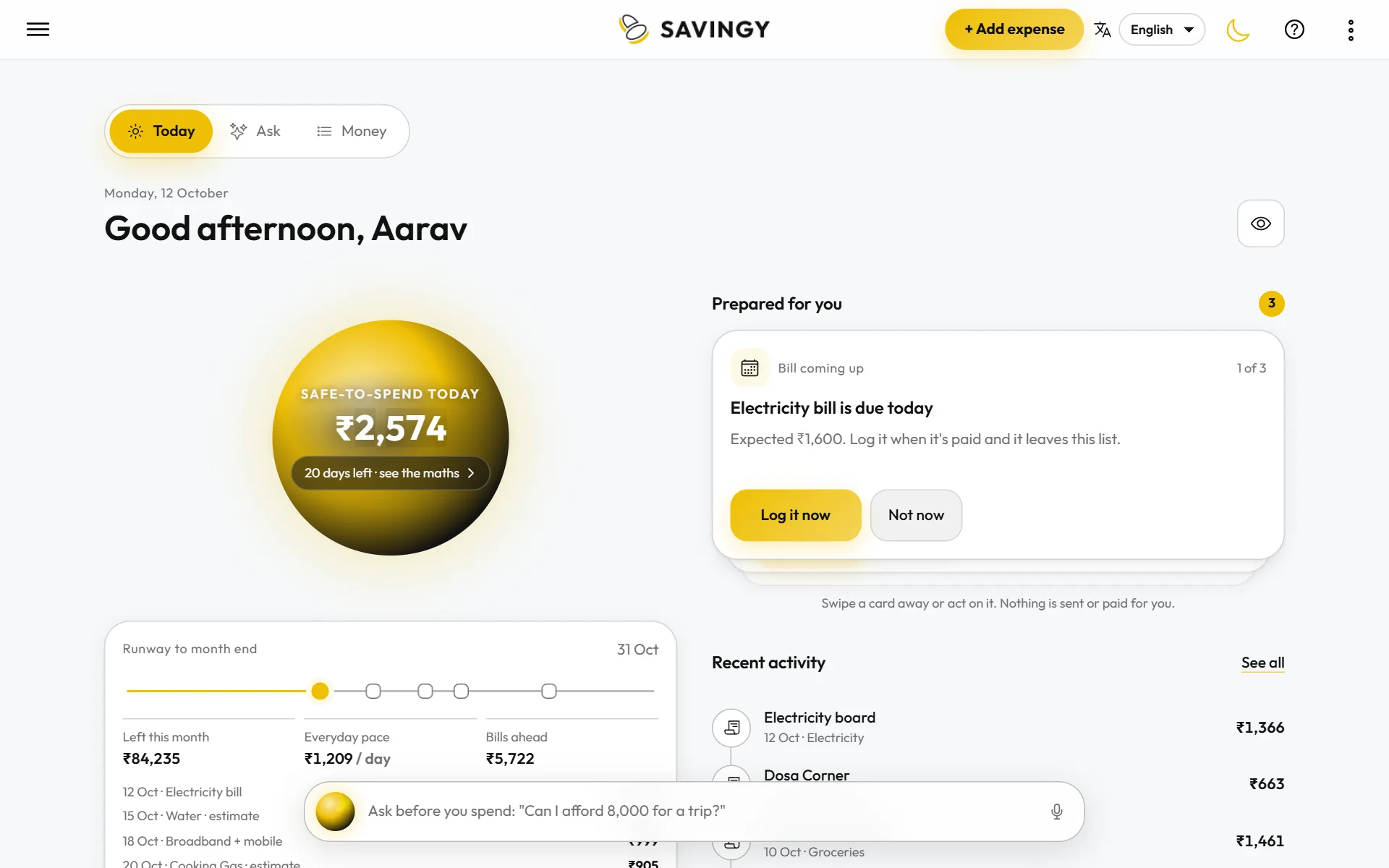
- 1Safe-to-Spend Today
- 2Prepared for you
- 3Hide or show amounts
Why use it
A 30-second look at Today tells you whether to hold back, what needs a decision and whether your records are up to date.
Before you start
- Finished the guided setup
- A plan for this month, for the big number and the runway
How to do it
Open Today from the menu or the bottom bar. The date and a greeting sit at the top; the eye button next to them hides or shows amounts.
Read the big number, "Safe-to-Spend Today". Select "… days left · see the maths" to see exactly how it was worked out.
Check "Runway to month end" for the bills still ahead and your everyday pace.
Look at "Prepared for you" and act on the top card, or select "Not now".
Glance at "Your last seven days" to see which days you recorded spending.
Use "Recent activity" › "See all" to open Money, or the "Ask before you spend" bar at the bottom to ask a question first.
What happens next: You know today's safe amount, what is due before month end and the one thing worth doing next.
Layout on a computer and on a phone
On a wide screen Today has two columns: your figure, runway, Pro card and last seven days on the left; "Prepared for you" and "Recent activity" on the right. On a phone or narrow window everything stacks in one column in that order.
Which account Today shows
Today uses the account currently selected with the account chips on screens such as Money, Tracker and Add Record. "All accounts" adds them all together. Only real entries count; practice entries from the guided setup never appear.
The Pro card
While you have paid Pro, this card is hidden.
- "Add N more real entries": how many more income or expense entries unlock the free 45-day trial. "Add a past entry" helps you catch up.
- "Start your free 45-day Pro trial": you qualify; the trial starts only when you select "Start trial". No card is needed.
- "N days left in Pro": your trial is running. "Explore Pro tools" opens Moves.
- "Trial complete" or "Pro ended": "View Pro options" shows the prices and how to buy Pro. Your records stay available on Free.
- "We could not confirm your Pro status": select "Retry". Savingy also retries by itself when you come back to the tab or your connection returns.
Other things you may see
- "Confirm your email" at the top, with "Resend email", if your address is not confirmed yet.
- Now and then, a question at the bottom: "How likely are you to recommend Savingy to a friend or colleague?" Tap a number from 0 to 10 or select "Not now".
Tips and examples
- Hiding amounts lasts until you leave Today. Turn it on again when you are in a public place.
If something goes wrong
"A clearer day starts with a plan." instead of a number
There is no plan for this month on the selected account, or the plan has no income and no opening balance. Select "Set this month's plan".
"Your plan could not be loaded."
Select "Retry". If it keeps failing, check your connection.
"Nothing recorded yet this month." under Recent activity
Select "Add your first entry" to log something in Money.
The figures do not match what you expect.
Check which account is selected and whether income or expenses are missing. See /help-center/numbers-look-wrong.