Check why your totals look wrong
Most surprising totals come from practice entries from the guided start, an account filter, the date on an entry, or hidden amounts. Here is how to check each one.
Why use it
Make sure the numbers on Today, Money, Plan and Tracker match what you expect.
How to do it
Check which account is selected. If you have more than one bank or cash account, account chips appear near the top of Money and Tracker. Tap "All accounts" to see everything.
Check the dates on your entries in Tracker. Totals count an entry in the month of its date, not the day you typed it.
Look for entries from the guided start, such as "Monthly Income (Practice)" and your first practice expense. Edit or delete them in Tracker if they are not real.
If you see **** instead of amounts, tap the eye icon ("Show amounts").
Account filter
Your account choice applies across screens and stays until you change it. When one account is selected, totals, lists and charts show only that account. Choose "All accounts" to include everything.
Plan always shows one account's plan at a time. Use the "Plan for" chips at the top of Plan to switch.
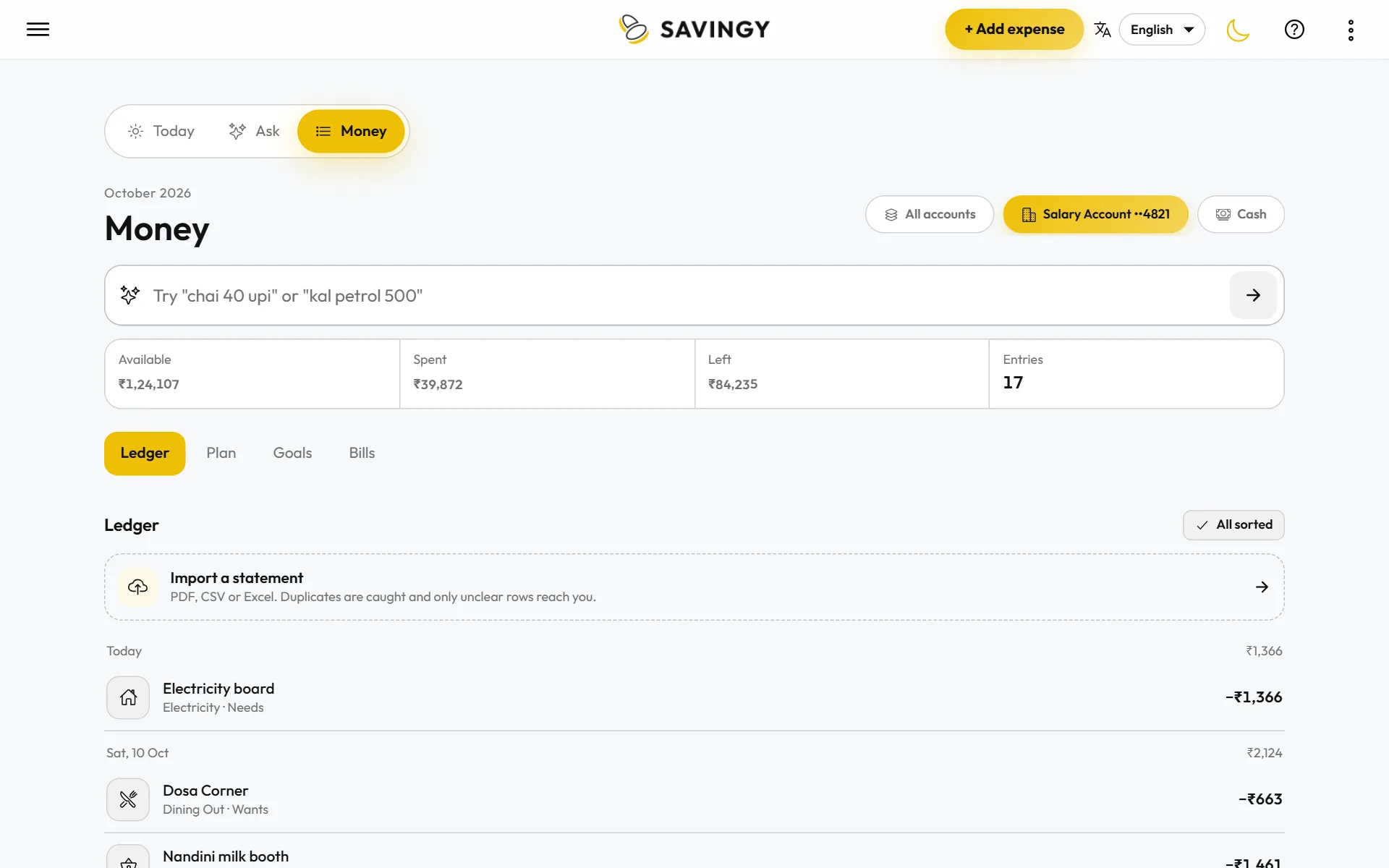
- 1Account chips
Practice entries from the guided start
During the guided start you log a practice plan, a practice income and a practice expense. When you finish the guided start, Savingy keeps them as your real starting data, so they count in your totals from then on. If they were made-up numbers, change or delete them in Tracker.
Dates and month boundaries
- An expense dated 31 October counts in October, even if you added it on 1 November.
- Plan shows one calendar month at a time. Use the month arrows ("Previous month" and "Next month") on Plan to check the right month.
Hidden amounts
Today has an eye icon at the top ("Hide amounts"). When it is on, amounts show as ****. Tap it again ("Show amounts") to see the numbers. The full plan editor has its own "Hide amounts" button.
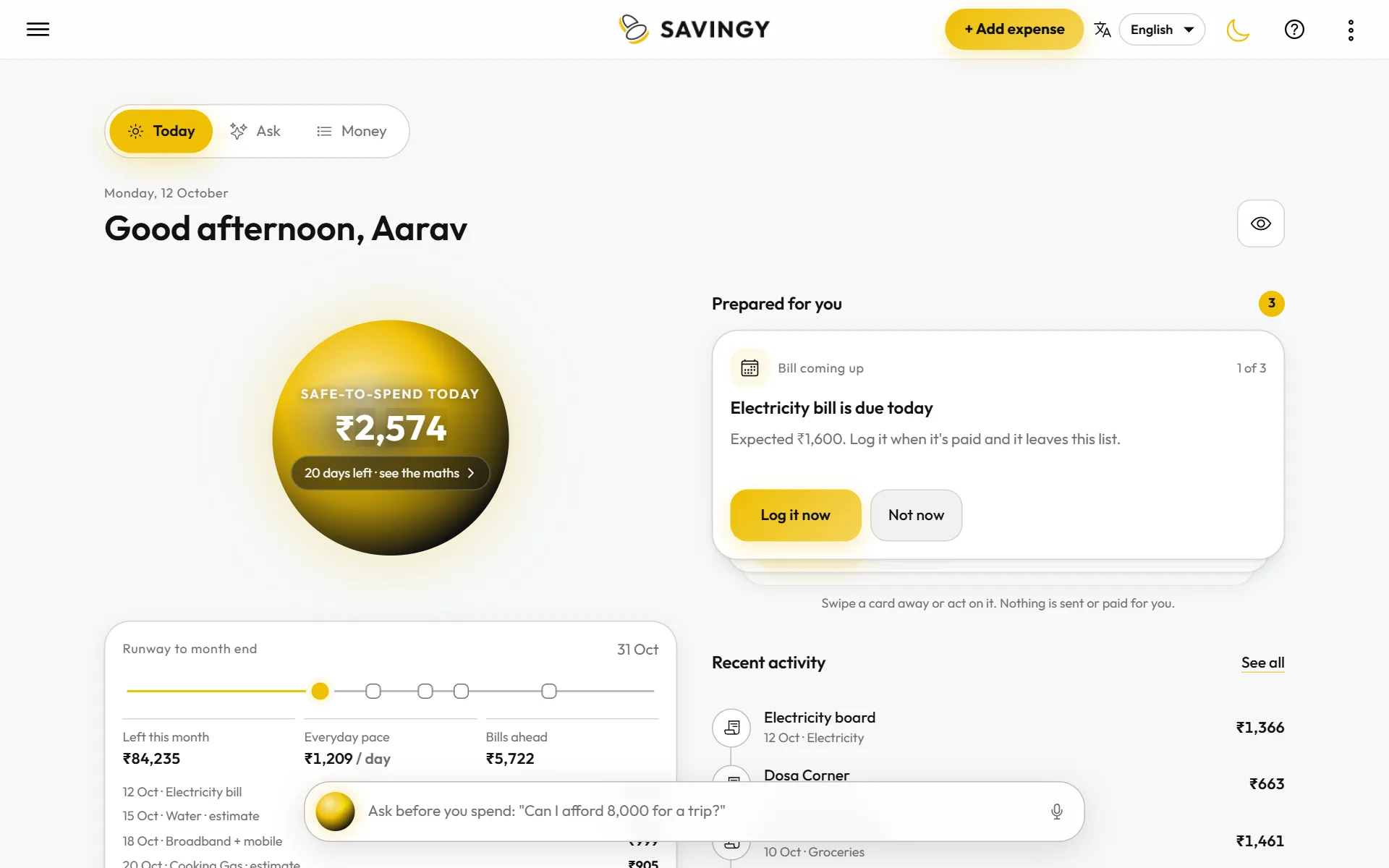
- 1Hide amounts / Show amounts
Still wrong?
Reload the page so every figure is fetched again. If a total still does not match your entries in Tracker, contact support with the screen name and the month.