Do your Weekly Reset in a few minutes
Weekly Reset walks you through your week: what you spent against your weekly plan, the days you logged, anything unusual, bills coming up and one move for next week. Finish the checklist and claim 50 coins.
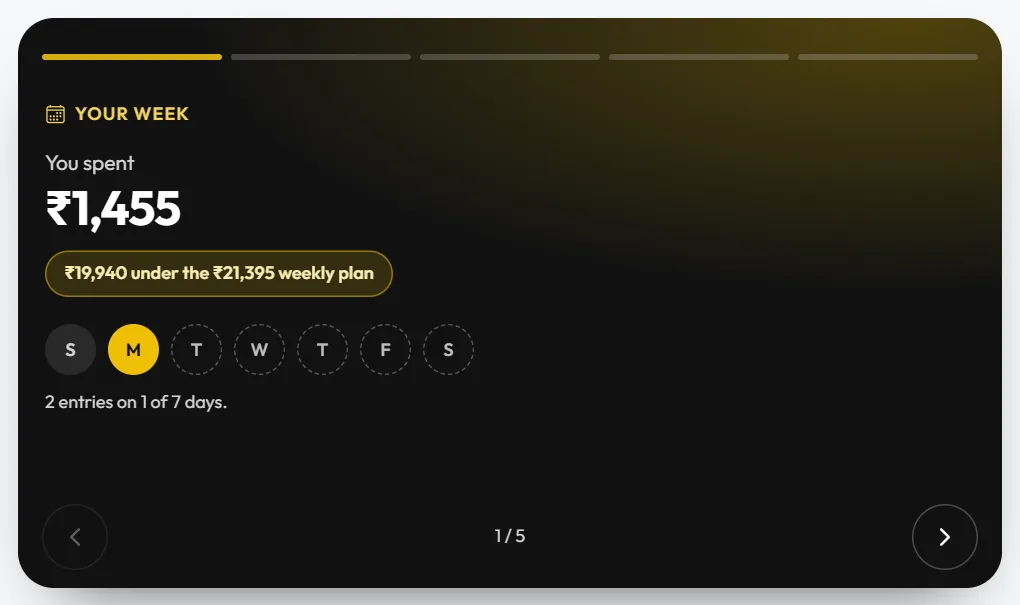
- 1Spent this week
- 2Days with entries
- 3Next card
Why use it
A short look back once a week catches overspending while there is still time to fix it, and keeps your logging habit going.
Access: The reset, the checklist and the reward are free. Two cards are part of Pro: "Coming Week's Commitments" and weekly money moves tracking. Free users see a locked preview with an upgrade button, and the story shows how many more finds are in Pro. See /help-center/what-pro-includes.
Before you start
- You have finished the guided start (Level 0).
- A plan for this month, so Savingy can work out your weekly budget. See /help-center/your-monthly-plan.
- A few entries logged this week.
How to do it
Open Weekly Reset. A short quote shows while your week loads ("Syncing your ritual...").
Read "Your week in 60 seconds". Use the arrows, the card bars at the top, your arrow keys, or swipe to move through the five cards: your week, "Noticed this week", "Coming up", "One move for next week" and "Wrap up".
On "One move for next week", select "Make it my move" if you want to take it on.
Scroll down to read "This week at a glance", "Daily Streak and Activity Check", "Pacing Alerts", "Bills next 7 days" and "This week’s money moves".
Under "Reset checklist", tap each item when it is done. Moving past the first three story cards ticks the matching items for you.
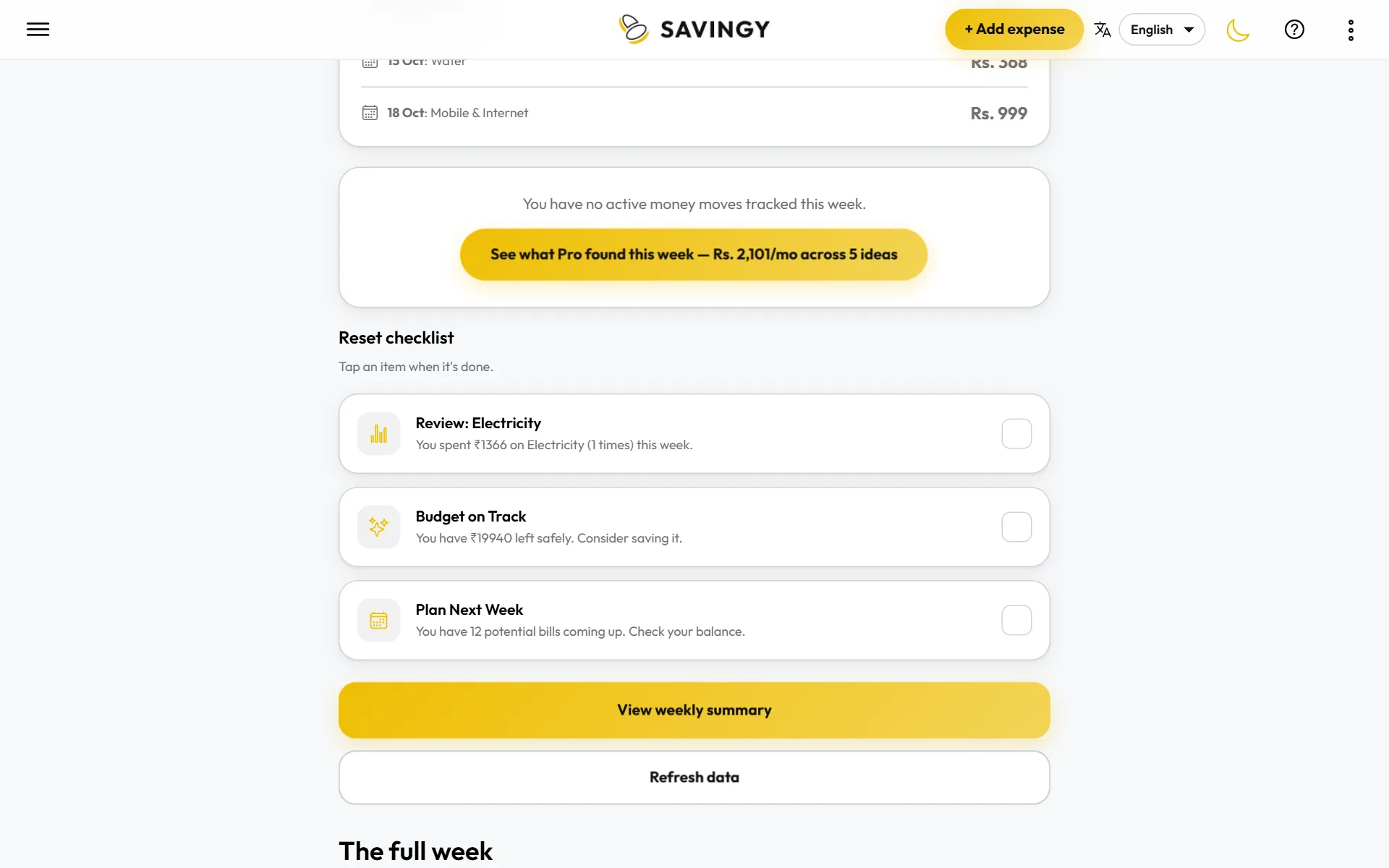
- 1Tap an item when it's done
When every item is ticked, "Week reset complete" appears. Select "Claim 50 Savingy Coins". See /help-center/weekly-reset-reward.
What happens next: "Reset Progress" at the top reads "3 of 3 completed (100%)" and the reward is credited to your wallet once for the week.
Where the numbers come from
- Weekly budget: your monthly plan divided by 4.3.
- Spent and income this week: your entries from Sunday to Saturday of the current week.
- Remaining vs plan: the weekly budget minus what you spent. Above zero means "On track"; below zero shows "Over budget".
- Days logged: which days of the week have at least one entry.
- Pacing Alerts: categories running ahead of their usual pace this month, bills you paid around this time last month that are not in your plan, and two identical charges in the same category within three days. Free shows the first one; Pro shows up to three.
- Bills next 7 days: entries you have dated in the next seven days, plus payments you made in the same days last month (marked as predicted). Your bill reminders are not used here.
Where AI is used
The wording of the three checklist items and "This week’s money moves" is written by Savingy AI from your week's totals and your most frequent category. If AI is not available, Savingy shows plain checklist steps worked out from the same numbers. Every amount on the page comes from your own entries. See /help-center/how-savingy-uses-ai.
Share your week
On the "Wrap up" card you can make an image of your week. Amounts stay off the image unless you select "Show amounts". Select "Share" to use your device's share sheet, or "Save image" to download it.
Would you buy it again?
Step 1 lists your biggest buys of the last 7 days. For each, tap "Would buy again" or "Regret", or leave it. Tap your choice again to clear it. A line counts how many you marked each way.
It is free, and only what you tap is saved. With Pro, "Your patterns" on Check before you buy can show how many buys you marked as regret.
Tips and examples
- Ticks are kept in this browser and are not cleared automatically when a new week starts yet. If items already look ticked, tap them to untick and go through the week again.
- The "Account" selector at the top of the page does not change the figures yet; they cover all your accounts.
- Select "Refresh data" after logging new entries to update the page.
If something goes wrong
"Could not load your Weekly Reset data."
Select Retry. If it keeps failing, check your connection and reload the page.
The weekly budget shows ₹0.
You have no plan for this month yet. Set one up and come back.
Pacing Alerts shows a bill as "₹… over".
For a predicted bill, that figure is the bill's amount from last month, not an overspend. Read the line under it.
Selecting Weekly Reset takes you to your setup steps.
Finish the guided start first. See /help-center/level-0-guided-start.