Read the full week: daily spend and categories
"The full week", at the foot of Weekly Reset, shows this week's or an earlier week's spending against your weekly plan, day by day and by category, compared with the week before.
Why use it
It shows which day and which category drove your week, so you know what to change next week.
Access: Everything here is free. Free users also see a short card about what Pro adds ("Try Pro free for 45 days"); it hides during a trial or paid Pro.
Before you start
- Some income and expense entries in the week you want to see.
How to do it
Open Weekly Reset and select "View weekly summary". The page scrolls to "The full week".
Choose a week in "Week range": "This Week (Current)", "Last Week", "2 Weeks Ago" or "3 Weeks Ago".
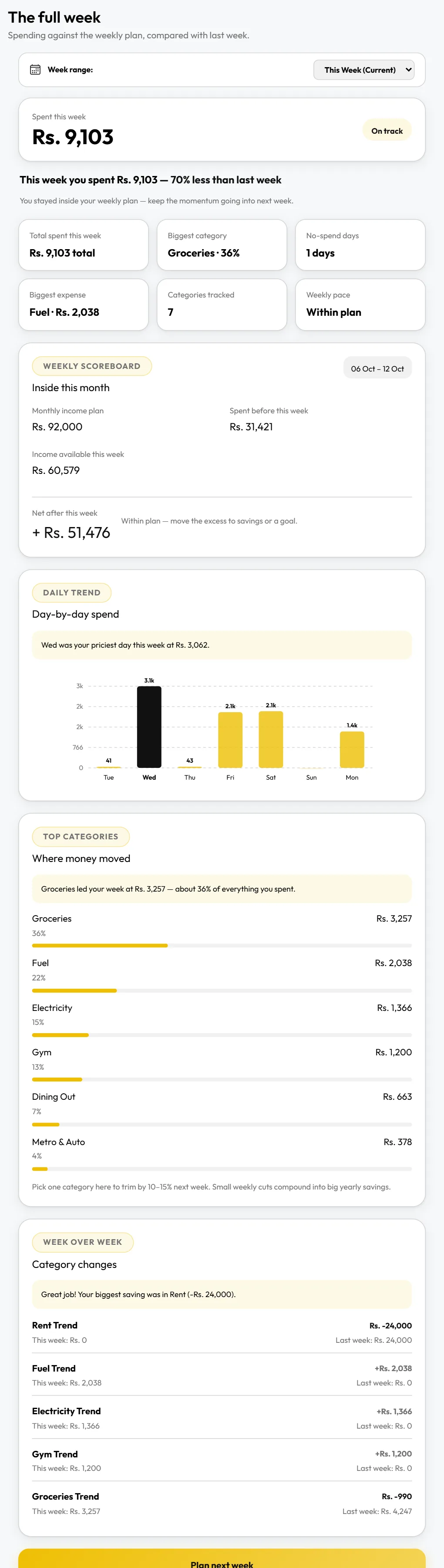
- 1Week range
Read the scoreboard, "Daily Trend" (your spend for each of the seven days, with the priciest day called out), "Top categories" and "Week over Week".
Select "Plan next week" to adjust your plan, or "Back to Today".
What happens next: You can see what you spent in the chosen week, which days and categories it went to, and how it compares with the week before.
Good to know
- "Plan next week" opens your monthly budget. There is no separate weekly plan; the weekly figure is your monthly plan spread over the month.
- "Reset your week" takes you to the top of Weekly Reset.
If something goes wrong
"No weekly data yet. Add a few expenses and incomes and come back after a few days."
Log some entries with "Add a record", then come back.
"Could not load your weekly summary."
Select "Try again". If it keeps failing, reload the page.