Edit, finish or delete a goal
Change a goal's name, target, saved amount, dates or note, see what you need each month to hit it, or delete it.
Why use it
Plans change. Moving a deadline or a target keeps your monthly amount realistic.
Before you start
- A goal on Goals & bills.
How to do it
On Goals & bills, select the goal's card or its "Edit" button.
Change any of "Goal name", "Target", "Saved so far", "Start", "Deadline" or "Note". The card at the top updates as you type and shows the monthly amount needed.
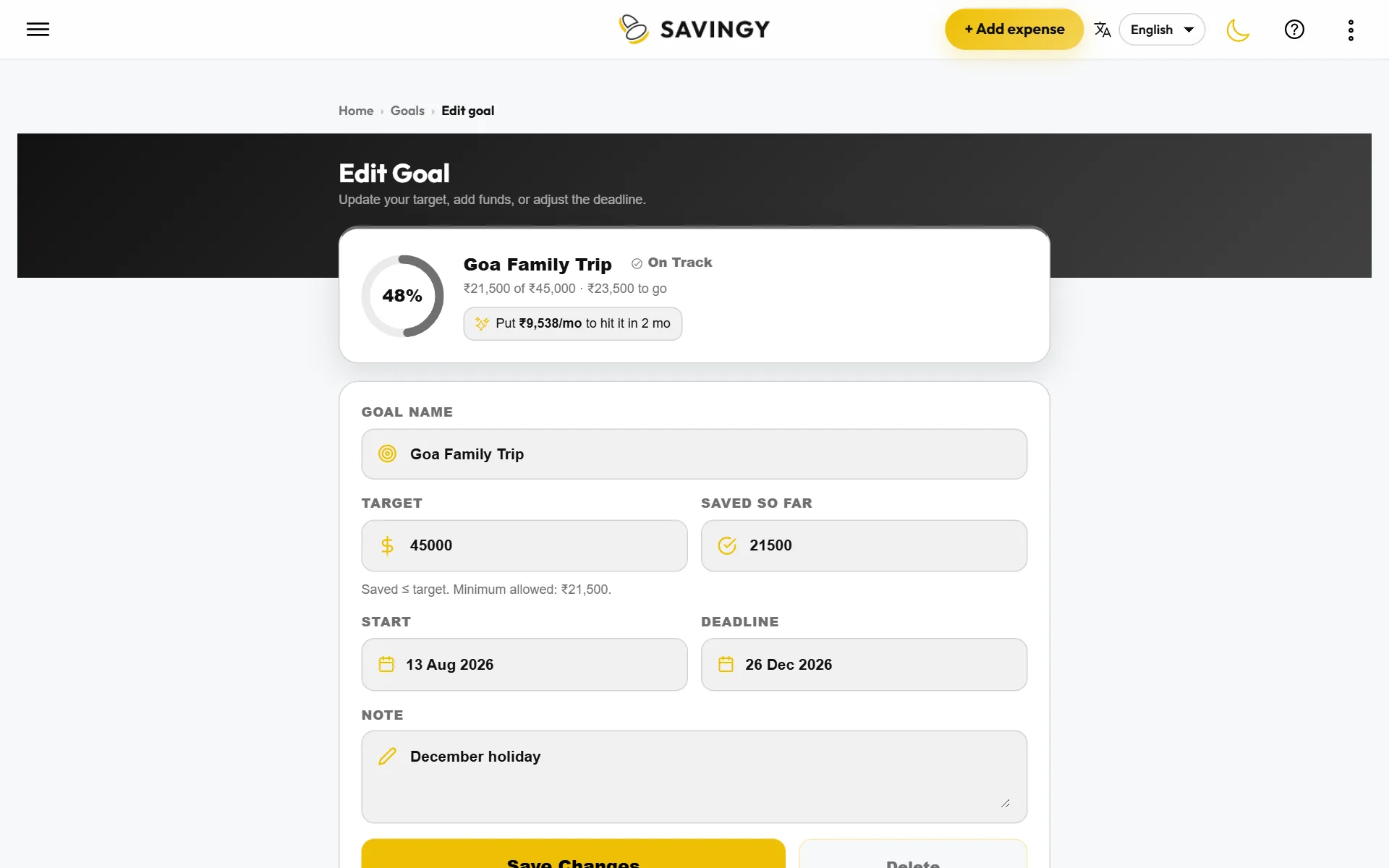
- 1Target
- 2Saved so far
Select "Save Changes". You return to Goals & bills.
To remove the goal, select "Delete" and confirm "Delete this goal? This cannot be undone."
What happens next: Your goal card shows the new figures. After a delete, the goal is gone from the list.
What to fill in
| Field | What it needs |
|---|---|
| Goal name | Required: "Goal name is required." |
| Target | Required and above zero: "Target amount must be greater than zero." |
| Saved so far | Zero or more, not above the target, and not below what was already saved: "Saved amount cannot be reduced below the previously saved amount." |
| Deadline | Must be after the start: "End date must be after start date." |
What the status labels mean
- "Ahead": you have saved more than the time gone would suggest.
- "On Track": you are close to where you should be by now.
- "Behind": you have saved less than the time gone would suggest.
- "Overdue": the deadline has passed and the goal is not complete.
- The "Confidence" figure and "Portfolio Health" are worked out from the same comparison of money saved against time gone. The "Goal Coach" note picks the goal that most needs attention. These are calculations on your goals, not AI predictions.
When a goal is finished
When "Saved so far" reaches the target, Savingy marks the goal complete. Completed goals no longer appear on Goals & bills, so the "Achieved" filter stays at zero for now. Your contributions stay recorded.
Deleting a goal
Deleting removes the goal and reverses the contributions recorded on it. It does not touch your expenses, income or bank accounts. It cannot be undone.
Tips and examples
- If the deadline has passed, the top card says "Deadline passed — add ₹… to finish". Move the deadline to get a new monthly amount.
- Use the filters "All", "Needs attention" and "On track" to see which goals need you.
If something goes wrong
"Missing goal details. Open this from the Goals list."
This page only opens from a goal card. If you reload it, go back to Goals & bills and select the goal again.
"Saved amount cannot be reduced below the previously saved amount."
Saved so far can only go up here. If you recorded too much, contact support (/help-center/contact-support).
A goal disappeared from the list.
It probably reached its target and was marked complete. Completed goals are not listed.