Back up your data and restore it from a file
Download a .zip backup of your whole Savingy account, and upload it later to put it back — into the same account, or into a new one after you delete your old account. Restoring adds back what is in the file; it does not wipe anything first.
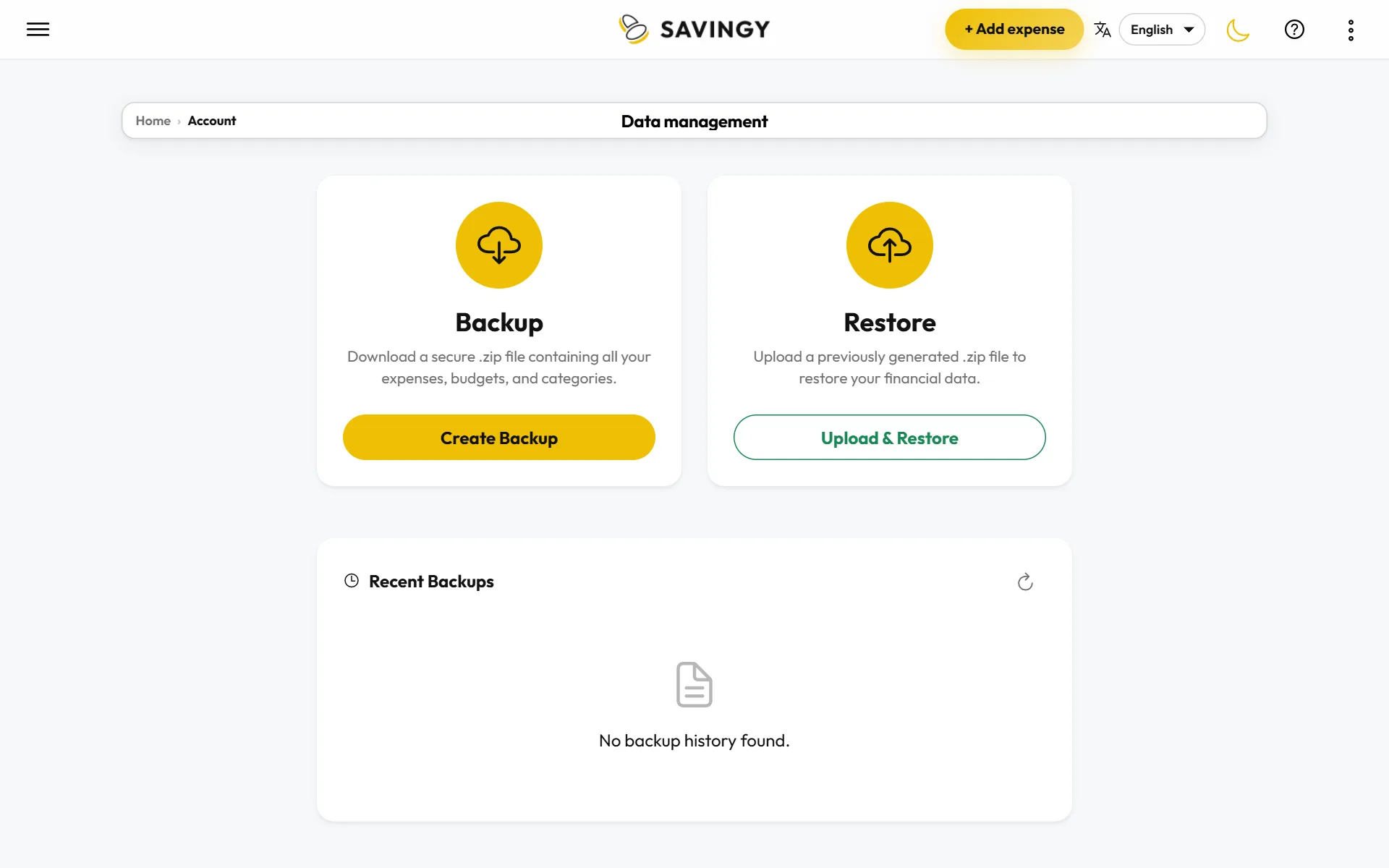
- 1Create Backup
- 2Upload & Restore
Why use it
Keep an offline copy of your account, bring back records you deleted by mistake, or come back to Savingy after deleting your account and pick up where you left off.
Before you start
- You are signed in.
- You have finished the guided start (Level 0). Data Management is not available until then.
How to do it
Open Data Management from the sidebar.
To make a backup, tap "Create Backup" on the Backup card. If Savingy asks, confirm your password. The button shows "Processing..." while Savingy prepares the file.
Your browser downloads a .zip file and you see "Backup downloaded successfully." The backup is added to "Recent Backups" below.
To restore, tap "Upload & Restore" on the Restore card and choose a .zip backup you downloaded from Savingy.
Wait for "Data restored. Reload the page to see everything in place." and the list of what came back, then reload the page.
What happens next: You have a .zip file on your device, or the records from your backup file are back in your account, with a list of what was restored.
What the backup contains
The .zip holds one file per type of record (one record per line), your images, and a signed manifest.json. It includes:
- Your expenses and income entries, and their receipt images.
- Your money accounts (bank, card, cash) from the Accounts screen.
- Your monthly plans (budgets), spend plans and month closes.
- Your goals and set-asides, and the money you added to them.
- Bill reminders, loans and the repeat purchases Savingy spotted.
- Your wallet (coins and streaks), your level and your preferences.
- Your Pro period and free-trial dates.
- Your saved calculations, financial plan, wishlist, habits and what Pro found for you.
- Your profile details and photo.
- Your payment history (Pro periods and article purchases).
What the backup never contains
- Your password, in any form. A backup cannot be used to sign in.
- Your sign-in sessions, devices and Telegram link.
- Family membership. A restore never puts you back into a family.
What restoring does
Restoring is a merge, not a reset. For every record in the file, Savingy writes the backed-up version into your account: a record that still exists is replaced by the copy in the file, and a record you deleted comes back.
Records you created after the backup are kept. If one of them is in the way of a backed-up record — for example the "Main" account a new account starts with — it gives way to the one in the file, and your entries in it move across.
Every restored record is placed in the account you are signed in to. A backup cannot change your name, email or password.
Restoring into the same account never rolls your coins back: your current wallet is kept.
Coming back after deleting your account
Sign up again (the same email works once the old account is erased), open Data Management and restore your backup. Your records, receipts, level and preferences come back, and so do your coins, your remaining Pro period and your payment history.
Coins, Pro and payment history can be carried into a new account once per deleted account. Restoring the same file into another account brings the records but not the coins, Pro or payment history again.
Older backups and edited files
Backups made before 2 November 2026, and any backup file that was changed after Savingy created it, restore your records only — not coins, Pro, level, preferences or payment history. The summary after restoring says so. Create a new backup to include everything.
Recent Backups
The list shows the file name and time of each backup you created, eight at a time. Use "← Prev" and "Next →" to page through it, and the refresh icon to reload it. Each row shows the status "completed" on a red badge; that colour does not mean the backup failed.
Tips and examples
- Make a fresh backup before a big clean-up, such as deleting many entries in Tracker, and before deleting your account.
- Store the .zip somewhere private. It contains your financial records and receipts.
If something goes wrong
"Please log in to access backups" or "Please log in to restore backups".
Your session on this tab has ended. Sign in again and reopen Data Management.
"Backup failed (HTTP …)" or the backup button spins and then fails.
Try again in a minute. If it keeps failing, contact support.
A message asks "Please choose a supported backup file created by this app. Continue anyway?"
The file you picked does not end in .zip. Choose "Cancel" and pick the .zip that Savingy downloaded.
"That file is not a Savingy backup (.zip)." or "This file has no Savingy records in it."
Use the original .zip from "Create Backup". A file that was unzipped and zipped again may not be readable.
The summary says coins, Pro, level, preferences and payment history did not come back.
The file is an older backup or was changed after download, so only your records were restored. Create a new backup from the account that has them.
"This backup’s coins, Pro and payment history were already restored into another account."
They can be carried over once per deleted account. Your records were still restored.
"Too many restores in an hour."
Wait an hour and try again.
I restored, but I still see the old numbers.
Reload the page. Restored records appear only after a refresh.