Use Savingy's free money calculators
Eleven free calculators for SIPs, loans, deposits, PPF and retirement. They work in your browser, need no account, and show the formula behind every answer.
Why use it
Use them to test a plan before you commit money: how much a SIP could grow to, what a loan really costs, or how big a retirement pot needs to be.
How to do it
Open "Calculators" from the footer of any page. If you are signed in you can also open Ahead and choose "Money calculators".
Pick a calculator from the row at the top. They are grouped as "Invest", "Save", "Borrow" and "Plan". On a phone the row scrolls sideways.
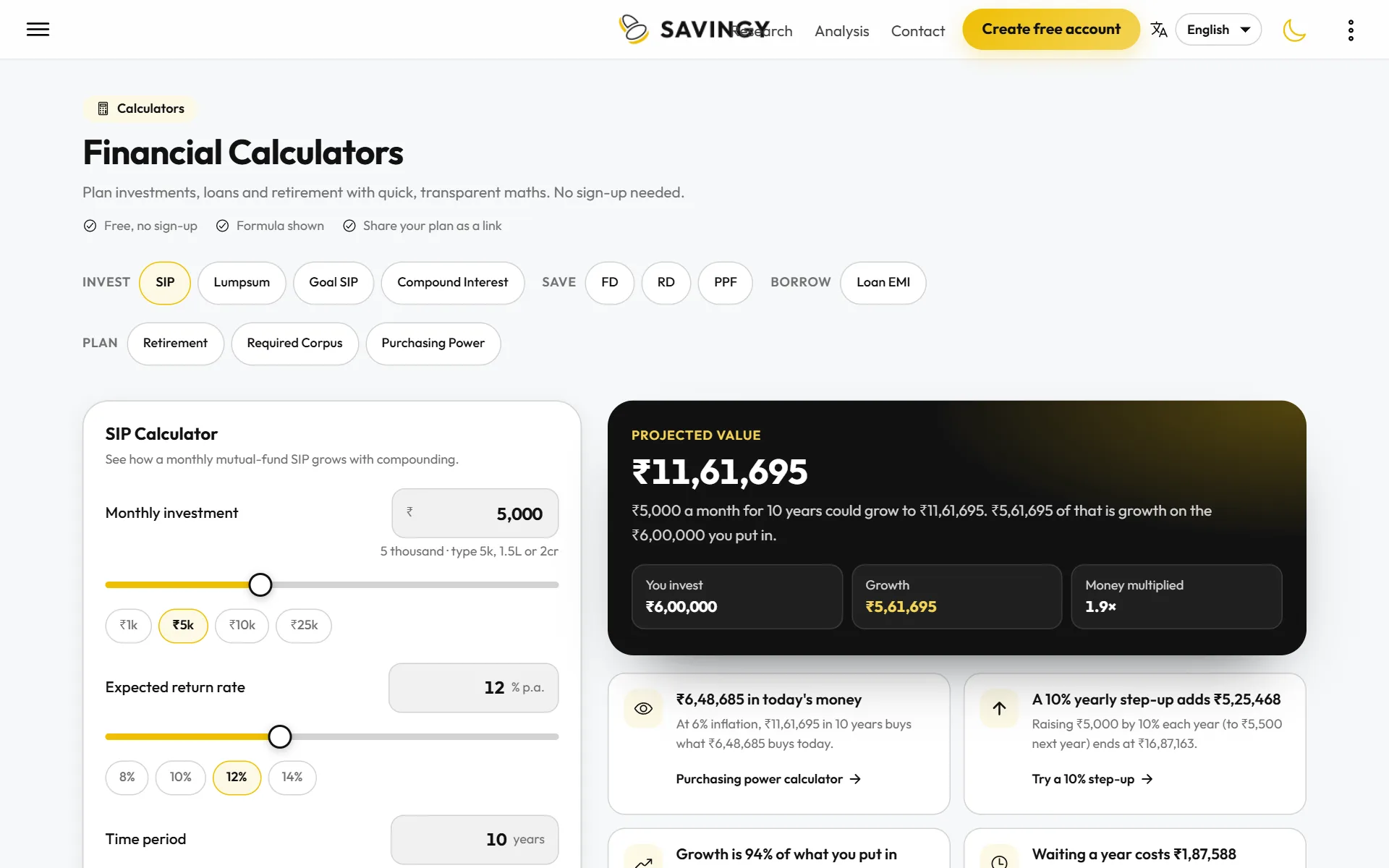
- 1Calculator selector: Invest, Save, Borrow, Plan
- 2Free, no sign-up; formula shown; share as a link
Pick a calculator from the grouped row. Change the inputs. Type a number in the box, drag the slider, or tap a preset chip. The answer updates as you go.
Read the big number at the top of the result, then the sentence under it that explains it in words.
Scroll down for "The formula", "A worked example" and "Questions people ask" about that calculator.
What happens next: You see the answer, a year-by-year chart, and short notes about your own numbers, such as what the result is worth in today's money.
Which calculator does what
- "SIP": what a fixed monthly investment could grow to.
- "Lumpsum": what a one-time investment could grow to, and how often it doubles.
- "Goal SIP": the monthly SIP you need to reach a target amount by a date. Its heading on the page reads "Goal Planner".
- "Compound Interest": a starting amount plus monthly additions, compounded monthly.
- "FD", "RD" and "PPF": what a fixed deposit, recurring deposit or Public Provident Fund account matures to.
- "Loan EMI": your monthly EMI, total interest, and what prepaying once a year saves.
- "Retirement": the pot you need on the day you retire, and the monthly SIP that builds it.
- "Required Corpus": the pot you need today to cover a yearly shortfall for a number of years.
- "Purchasing Power": what an amount will really be worth after inflation.
Tools under the inputs
Most calculators have three buttons under the inputs. "Pin to compare" keeps the current answer so you can change the inputs and see the difference. The pinned plan shows as a dashed line on the chart and as a "vs your pinned plan" note under the answer. Tap "Unpin" to drop it.
"Copy link" copies the page address with your inputs in it, so anyone who opens the link sees the same plan. "Reset" puts every input back to its starting value.
Open "Full schedule, year by year" to see the numbers behind the chart, and tap "CSV" to download them as a spreadsheet file.
- "Required Corpus" and "Purchasing Power" are simpler pages: they do not have "Pin to compare", "Copy link", "Reset" or the CSV download, and your inputs are not added to the link.
Results are estimates, not advice
Every calculator assumes the rate you enter stays the same for the whole period. Real returns, interest rates and inflation change, so treat each answer as an estimate for planning. The page itself says: estimates are for illustration only and are not investment advice.
Insights that mention "today's money" assume 6% inflation a year. Deposit interest (FD and RD) is shown before tax.
Typing amounts
Money boxes accept amounts the way people say them: 5k, 1.5L or 2cr. The amount is repeated in words under the box, for example "1.5 lakh". If you type a number outside a calculator's range, it is set to the nearest allowed value when you leave the box.
Saving a projection
If you are signed in, a gold "Save to Insights" button keeps the current projection on your account and shows "Projection saved to your Insights!". Only one projection is kept: each save replaces the last one. Savingy does not show saved projections on any screen at the moment, so use "Copy link" to keep a plan you want to come back to.
If you are not signed in, the button reads "Track this plan in Savingy, free" and opens sign-up.
Tips and examples
- On a phone, when you scroll down to change inputs, a bar at the bottom keeps showing the answer. Tap "See it" to jump back to the result.
- Some insights have a button that changes an input for you, such as "Try a 10% step-up". Use "Reset" to undo it.
If something goes wrong
"Save to Insights" says "Please log in to save."
You are not signed in on this tab. Sign in, open the calculator again and save. Or use "Copy link" to keep the plan without an account.
On "Required Corpus" or "Purchasing Power", "Save to Insights" says "Cannot save this calculator."
These two calculators cannot be saved yet. Note the numbers or take a screenshot instead.
"Save to Insights" says "Error saving."
The save did not reach Savingy. Check your connection and try again.
"Copy link" changed to "Copy the address bar".
Your browser did not allow copying. Copy the address from the browser's address bar instead; it already contains your inputs.